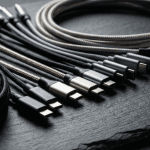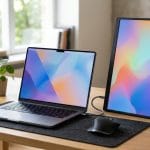

It is 2026 and USB-C is on virtually every device you own. Your laptop, your phone, your monitor, your portable SSD, your headphones, probably your toaster by now. And yet, the number one question on r/UsbCHardware hasn’t changed in years: “Will this cable work with my setup?”
The answer is almost always “it depends,” and that’s the problem. USB-C is a connector shape, not a capability guarantee. The same oval port on your $300 Chromebook and your $3,000 workstation can support wildly different speeds, power levels, and display outputs. Thunderbolt makes it even more confusing by using the exact same physical connector while offering a completely different protocol underneath.
This guide exists because you shouldn’t need an electrical engineering degree to buy the right cable. We’ve distilled the specs, cross-referenced the Reddit threads, and laid out everything in plain language. Bookmark this one.
On this page
- Why USB-C Confusion Still Exists in 2026
- Section 1: USB-C Versions Decoded
- Section 2: Thunderbolt 4 vs Thunderbolt 5
- Section 3: How to Check What Your Laptop Actually Supports
- Section 4: Buying the Right Cable
- Comparison Table: USB 3.2 Gen 1 vs Gen 2 vs USB4 vs TB4 vs TB5
- Frequently Asked Questions
- 1. Can I use a Thunderbolt 5 cable with a Thunderbolt 4 device?
- 2. My laptop says “USB-C” and nothing else. How do I know if it supports Thunderbolt?
- 3. Do I need a special cable for 240W USB-C charging?
- 4. Is USB4 the same as Thunderbolt 4?
- 5. Why does my external SSD transfer slower than advertised when connected to a USB4/Thunderbolt port?
- The Bottom Line
Why USB-C Confusion Still Exists in 2026
The core issue is simple: USB-C describes the physical shape of the connector, not what it can do. The USB Implementers Forum (USB-IF) decided that one reversible connector would replace the graveyard of USB-A, USB-B, Mini-USB, and Micro-USB plugs. Noble goal. Terrible execution on the naming and labeling front.
Here’s what can hide behind a USB-C port:
- USB 2.0 speeds (480Mbps) — yes, in 2026, some devices still ship with this
- USB 3.2 Gen 1 speeds (5Gbps)
- USB 3.2 Gen 2 speeds (10Gbps)
- USB4 speeds (20Gbps or 40Gbps)
- Thunderbolt 4 (40Gbps with guaranteed minimum features)
- Thunderbolt 5 (80Gbps, up to 120Gbps asymmetric)
- Power Delivery ranging from 15W to 240W
- Display output via Alt Mode — or no display output at all
All of these use the same connector. None of them are guaranteed just because you see a USB-C port. As one r/UsbCHardware commenter put it: “USB-C is a shape, not a promise.”
The naming mess, briefly: USB 3.0 was renamed to USB 3.1 Gen 1, which was then renamed to USB 3.2 Gen 1. USB 3.1 Gen 2 became USB 3.2 Gen 2. Then USB 3.2 Gen 2×2 appeared. The USB-IF has since tried to simplify with “USB 5Gbps,” “USB 10Gbps,” “USB 20Gbps,” and “USB 40Gbps” branding, but manufacturers still use the old names on spec sheets. We will reference both throughout this guide.
Section 1: USB-C Versions Decoded
Transfer Speeds: What the Numbers Actually Mean
Let’s cut through the naming chaos. Here’s what each USB generation delivers in real-world terms:
USB 2.0 (480Mbps) — This is the baseline. You will find this in budget phones, basic charging cables, and some peripherals. At 480Mbps theoretical (realistically 30-40 MB/s), transferring a 10GB file takes over four minutes. If your cable came free in a box, it’s probably USB 2.0.
USB 3.2 Gen 1 / USB 5Gbps (5Gbps) — Ten times faster than USB 2.0. This is the minimum acceptable standard for external storage in 2026. Real-world throughput sits around 400-450 MB/s. Most mid-range laptops ship with at least this tier.
USB 3.2 Gen 2 / USB 10Gbps (10Gbps) — Doubles Gen 1. Real-world speeds hit roughly 800-900 MB/s. This is the sweet spot for NVMe external SSDs. If you’re using a Samsung T7 or similar portable drive, you want at least this.
USB 3.2 Gen 2×2 / USB 20Gbps (20Gbps) — Uses two lanes to hit 20Gbps. Rare in laptops but found in some desktop motherboards and high-end enclosures. Real-world throughput can reach 1,700-1,800 MB/s.
USB4 (20Gbps or 40Gbps) — Based on the Thunderbolt 3 protocol (Intel contributed the spec). USB4 Version 1.0 supports up to 40Gbps. USB4 Version 2.0 pushes to 80Gbps. Crucially, USB4 tunnels data, display, and PCIe signals over the same connection, which means fewer dedicated ports and more flexibility. However, USB4 features are not all mandatory — manufacturers can pick and choose, which is why a “USB4” port on one laptop may not match another.
Power Delivery: 60W vs 100W vs 240W (EPR)
USB Power Delivery (PD) is the charging protocol that runs over USB-C. Here’s the breakdown:
- Standard USB-C (no PD): Up to 15W (5V/3A). Enough for phones, not for laptops.
- USB PD 3.0 (Standard Power Range): Up to 100W (20V/5A). This covers most ultrabooks and many 15-inch laptops. Requires an electronically marked (e-marked) cable for anything above 60W.
- USB PD 3.1 (Extended Power Range / EPR): Up to 240W (48V/5A). This is the game-changer for gaming laptops and mobile workstations that previously needed proprietary barrel-plug chargers. Both the charger and cable must support EPR — you cannot mix and match.
Practical note: Your device negotiates the highest mutually supported wattage. A 100W laptop plugged into a 65W charger will charge at 65W — slower, but it works. A 65W laptop plugged into a 100W charger will pull only 65W. No damage, no fire. The negotiation is automatic. People on r/laptops ask about this constantly — you cannot “over-charge” by using a higher-wattage adapter.
Alt Mode: DisplayPort, HDMI, and What Your Port Actually Supports
USB-C Alt Mode allows non-USB signals to travel over a USB-C connection. The two most common Alt Modes are:
- DisplayPort Alt Mode (DP Alt Mode): The most widely supported. DP 1.4 Alt Mode can drive a single 4K display at 120Hz or two 4K displays at 60Hz. DP 2.1 Alt Mode (found in USB4 and Thunderbolt 5 systems) can push 8K at 60Hz or multiple 4K displays at high refresh rates.
- HDMI Alt Mode: Less common, limited to HDMI 1.4b in most implementations. Generally inferior to DP Alt Mode — if you need HDMI output, a USB-C to HDMI adapter using DP Alt Mode conversion is usually the better path.
The catch: not every USB-C port supports Alt Mode. Cheaper laptops may have USB-C ports that handle data and charging but cannot output video at all. Always check the spec sheet. If you are building a multi-monitor setup, our guide to the best monitors for coding in 2026 covers which panels play nicest with USB-C direct connections.
Section 2: Thunderbolt 4 vs Thunderbolt 5
Thunderbolt 4: The Reliable Baseline
Thunderbolt is Intel’s protocol that uses the USB-C connector but guarantees a minimum feature set — something USB-C alone does not do. Thunderbolt 4, launched in 2020 and still widely deployed in 2026, offers:
- 40Gbps total bandwidth (same as Thunderbolt 3, but with stricter minimums)
- Guaranteed dual 4K display output (TB3 only required one)
- 32Gbps minimum PCIe tunneling (critical for eGPUs and NVMe storage)
- USB4 compatibility
- Wake from sleep, Intel VT-d DMA protection
- Support for docks with up to four Thunderbolt 4 ports
- Hub support — Thunderbolt 4 introduced the ability to daisy-chain and use hubs, which TB3 only partially supported
Thunderbolt 4 is the reason docking stations became genuinely reliable for professional setups. One cable from your laptop to a dock, and you get power, dual monitors, Ethernet, USB peripherals, and storage — all through a single port. If you are a developer running an external display alongside your IDE, compiler, and a dozen browser tabs, TB4 docking is effectively mandatory. We cover the full dock landscape in our best docking stations for laptops roundup.
Thunderbolt 5: The Next Level
Thunderbolt 5, which began shipping in late 2024 and has reached broader adoption through 2025 and into 2026, is a significant leap:
- 80Gbps bidirectional bandwidth (double TB4)
- 120Gbps with Bandwidth Boost — an asymmetric mode that allocates 120Gbps downstream and 40Gbps upstream, ideal for driving displays and receiving high-speed storage data simultaneously
- DisplayPort 2.1 support — enabling three 4K displays at 144Hz, or a single 8K display at 60Hz, or configurations in between
- 64Gbps PCIe tunneling — double TB4, which makes eGPUs significantly more viable by reducing the bandwidth bottleneck
- USB4 V2 compatibility
- Up to 240W Power Delivery (PD 3.1 / EPR)
Why TB5 matters for docking stations: With TB4, you could run two 4K monitors comfortably but pushing beyond that meant compromises. TB5 docks can handle three high-resolution displays without breaking a sweat, while still leaving bandwidth for 10GbE networking, NVMe storage, and USB peripherals. For developers and creative professionals who live in multi-monitor setups, this is transformational.
Why TB5 matters for eGPUs: The eGPU community on r/buildapc has been vocal about Thunderbolt’s PCIe bandwidth limitations for years. TB4’s 32Gbps PCIe allocation (roughly equivalent to PCIe 3.0 x4) meant GPUs were significantly bottlenecked compared to a direct slot connection. TB5 doubles this to 64Gbps, approaching PCIe 4.0 x4 performance. It is not parity with an internal GPU, but it is close enough that high-end eGPU setups are now genuinely practical for gaming at 1440p and professional GPU compute workloads.
Section 3: How to Check What Your Laptop Actually Supports
Knowing the spec sheet is one thing. Verifying what your actual hardware delivers is another. Here is how to check.
Windows: Device Manager + HWiNFO Method
- Quick check: Open Device Manager and expand “Universal Serial Bus controllers.” Look for entries like “USB 3.2 Gen 2,” “USB4 Host Router,” or “Thunderbolt Controller.” The naming will tell you the maximum spec of each controller.
- Detailed check: Download HWiNFO (free). Run it in Sensors-only mode and look under the USB and Thunderbolt sections. HWiNFO will show you exact controller models (e.g., Intel JHL8540 for TB4, Intel Barlow Ridge for TB5), supported link speeds, and current negotiated speeds when devices are connected.
- USB4 specific: Windows 11 added a USB4 settings page under Settings > Bluetooth & devices > USB that shows connected USB4/Thunderbolt devices and their negotiated speeds. This is the quickest way to confirm your connection is running at full spec.
Mac: System Information > Thunderbolt
- Click the Apple menu > About This Mac > More Info > System Report.
- In the sidebar, select Thunderbolt/USB4.
- This will show each port’s maximum speed, current link speed, and connected device details. Apple Silicon Macs from the M1 onward all support Thunderbolt 4 at minimum, with M4 Pro and M4 Max chips supporting Thunderbolt 5.
- Tip: If you connect a Thunderbolt device and it shows up under “USB” instead of “Thunderbolt,” you have a cable problem. The device is falling back to USB mode because the cable doesn’t support Thunderbolt signaling.
The Symbol Guide: Lightning Bolt vs USB vs Nothing
Manufacturers sometimes label their USB-C ports with symbols. Sometimes. Here is what they mean when they bother:
- Lightning bolt icon (⚡): Thunderbolt. If it says “4” or “5” next to it, even better. This is the gold standard — maximum guaranteed features.
- USB trident symbol (the pitchfork-looking thing): USB data. The specific version (3.2, USB4) usually is not indicated by the symbol alone — check the spec sheet.
- “SS” marking: SuperSpeed USB, meaning at least USB 3.2 Gen 1 (5Gbps). “SS10” means Gen 2 (10Gbps). “SS20” means Gen 2×2 (20Gbps).
- Battery icon next to the port: Supports USB Power Delivery charging.
- “DP” or a small display icon: Supports DisplayPort Alt Mode.
- No symbol at all: Welcome to the guessing game. Check the manual. Seriously, this is still common in 2026, and it’s the number one complaint on r/laptops.
If you are shopping for a new laptop for programming, we specifically call out port specifications in our reviews because we know this matters.
Section 4: Buying the Right Cable
Active vs Passive Cables
Passive cables are simple copper conductors. They are cheaper, thinner, and work perfectly at short lengths. For USB 3.2 and Thunderbolt 4/5, passive cables are rated up to about 1 meter (3.3 feet) for full-speed operation. Beyond that, signal integrity degrades.
Active cables contain signal-boosting electronics (retimers) inside the cable or connectors. They cost more but can maintain full Thunderbolt 5 speeds at 2 meters, and some manufacturers offer active optical cables that reach 5 meters or more. If your dock lives on a desk behind a monitor and your laptop sits in a stand two feet away, passive is fine. If you need to route a cable across a room, go active.
Length Limitations
- USB 2.0: Up to 5 meters, no problem. It’s slow, but the signal is robust.
- USB 3.2 Gen 1 (5Gbps): 2-3 meters passive. Beyond that, consider active cables or a powered hub.
- USB 3.2 Gen 2 (10Gbps): 1-2 meters passive reliably. Signal loss is real at this speed.
- USB4 / Thunderbolt 4 (40Gbps): 0.8-1 meter passive for guaranteed full speed. Up to 2 meters with high-quality active cables.
- Thunderbolt 5 (80-120Gbps): 1 meter passive. Active cables extend to 2 meters for copper, up to 50 meters for active optical cables (at significant cost).
Reddit wisdom from r/Thunderbolt: “If it didn’t come with the device and it was under $10, it’s probably not going to do what you think it’s going to do.” Cheap cables are the number one source of “my dock doesn’t work” posts. Do not cheap out on cables — especially for Thunderbolt.
Reddit-Recommended Brands
After surveying hundreds of threads across r/UsbCHardware, r/Thunderbolt, and r/buildapc, three brands consistently get recommended:
- Anker: Excellent bang-for-buck on USB 3.2 and USB4 cables. Their USB-C to USB-C cables are the default recommendation for general use. Well-certified and widely available.
- Cable Matters: The go-to for Thunderbolt 4 certified cables and active Thunderbolt 5 cables. They tend to be among the first to market with new spec certifications and their active cables have a strong reliability track record.
- CalDigit: Premium pricing, but their Thunderbolt cables are built to last and are tested extensively. CalDigit also makes some of the best Thunderbolt docks on the market, so their cables are optimized for that ecosystem. If you want a “buy once, never think about it again” cable, CalDigit is the answer.
Honorable mentions: Apple’s own Thunderbolt cables are overpriced but genuinely excellent quality. OWC makes solid Thunderbolt cables as well. For USB-C to USB-C charging-only cables (when you don’t need high-speed data), Baseus and UGREEN offer good options at lower price points.
Comparison Table: USB 3.2 Gen 1 vs Gen 2 vs USB4 vs TB4 vs TB5
| Feature | USB 3.2 Gen 1 | USB 3.2 Gen 2 | USB4 (40Gbps) | Thunderbolt 4 | Thunderbolt 5 |
|---|---|---|---|---|---|
| Max Bandwidth | 5Gbps | 10Gbps | 40Gbps | 40Gbps | 80Gbps (120Gbps boost) |
| Real-World Throughput | ~450 MB/s | ~900 MB/s | ~3,000 MB/s | ~3,000 MB/s | ~6,000+ MB/s |
| PCIe Tunneling | No | No | Optional | 32Gbps (mandatory) | 64Gbps (mandatory) |
| Min Display Output | Not guaranteed | Not guaranteed | One display (optional) | Two 4K @ 60Hz (mandatory) | Three 4K @ 144Hz |
| Max Power Delivery | 15W (typically) | 15-100W | Up to 240W (EPR) | Up to 100W | Up to 240W (EPR) |
| Certification Required | No | No | No | Yes (Intel) | Yes (Intel) |
| Connector | USB-C (or USB-A) | USB-C (or USB-A) | USB-C only | USB-C only | USB-C only |
| Daisy-Chain / Hub | Hub only | Hub only | Hub support varies | Hub + daisy-chain | Hub + daisy-chain |
| Best For | Flash drives, peripherals | Portable SSDs | Docks, fast storage | Pro docking, eGPU | Multi-display, eGPU, pro workloads |
Frequently Asked Questions
1. Can I use a Thunderbolt 5 cable with a Thunderbolt 4 device?
Yes. Thunderbolt is fully backward compatible. A TB5 cable will work with TB4, TB3, USB4, and USB 3.2 devices. It will simply operate at the speed of the slowest component in the chain. You will not get TB5 speeds from a TB4 port, but the cable will function perfectly. Buying a TB5 cable now is a reasonable form of future-proofing.
2. My laptop says “USB-C” and nothing else. How do I know if it supports Thunderbolt?
If it doesn’t say Thunderbolt and there’s no lightning bolt symbol next to the port, it almost certainly is not Thunderbolt. Check your laptop’s full specification sheet on the manufacturer’s website. The product page will list each port and its capabilities. If it only says “USB-C 3.2 Gen 1,” that is all you are getting — data transfer at 5Gbps, likely no guaranteed display output, and basic charging.
3. Do I need a special cable for 240W USB-C charging?
Yes. 240W EPR (Extended Power Range) requires cables rated for 48V/5A. Standard USB-C cables are rated for 20V/5A (100W max) or less. Using a non-EPR cable with an EPR charger will not be dangerous — the system will negotiate down to 100W or lower — but you will not get the full 240W. EPR cables are clearly labeled. Look for “240W” on the packaging.
4. Is USB4 the same as Thunderbolt 4?
No, but they are closely related. USB4 is based on the Thunderbolt 3 protocol, and Thunderbolt 4 devices are USB4 compatible. The key difference is certification: Thunderbolt 4 mandates specific minimum features (dual 4K display, 32Gbps PCIe, hub support), while USB4 allows manufacturers to implement a subset of features. A Thunderbolt 4 port will always do what it promises. A USB4 port might or might not support all the same features. When in doubt, Thunderbolt certification is the safer bet.
5. Why does my external SSD transfer slower than advertised when connected to a USB4/Thunderbolt port?
The most common causes are, in order of likelihood: (1) the cable — you might be using a USB 2.0 cable that looks identical to a USB 3.2 cable; (2) the enclosure — the SSD inside might be fast, but the enclosure’s bridge chip might bottleneck at USB 3.2 Gen 1 speeds; (3) thermal throttling — NVMe drives in bus-powered enclosures throttle aggressively under sustained loads; (4) the port itself — your laptop may have a mix of USB-C ports with different capabilities, and you might be plugged into the slower one. Check your port specs, try a known-good cable, and monitor drive temperatures with CrystalDiskInfo (Windows) or DriveDx (Mac).
The Bottom Line
USB-C connectivity in 2026 is simultaneously better and more confusing than ever. The good news: Thunderbolt 5 and USB4 Version 2.0 are raising the floor, and an increasing number of devices are shipping with legitimately fast, fully-featured ports. The bad news: the cheap cable drawer of shame in your desk is still full of USB 2.0 cables masquerading as something better.
The rules are simple:
- Check your port specs before buying accessories. Not all USB-C is created equal.
- Buy certified cables from reputable brands. Anker for general use, Cable Matters or CalDigit for Thunderbolt.
- Thunderbolt certification means guaranteed features. If you need reliable docking, eGPU, or multi-display support, prioritize Thunderbolt over generic USB-C.
- When in doubt, go shorter. A 0.8m passive Thunderbolt cable is more reliable than a 2m one at half the price.
For more on building a solid peripheral setup, check out our roundup of the best docking stations for laptops in 2026, our picks for the best laptops for programming, and our full breakdown of developer tech stacks for 2026. The right cable is only one piece of the puzzle.
Editorial Independence Note: WU120 Tech Insights maintains full editorial independence. No manufacturer, brand, or retailer has paid for placement or influenced the recommendations in this article. When we recommend products, it is based on our own testing, research, and community feedback from sources including Reddit and specialist forums. Some links on this site may be affiliate links — if you purchase through them, we may earn a small commission at no extra cost to you. This never affects our editorial judgment or the products we recommend. Our commitment is to our readers, not to advertisers.