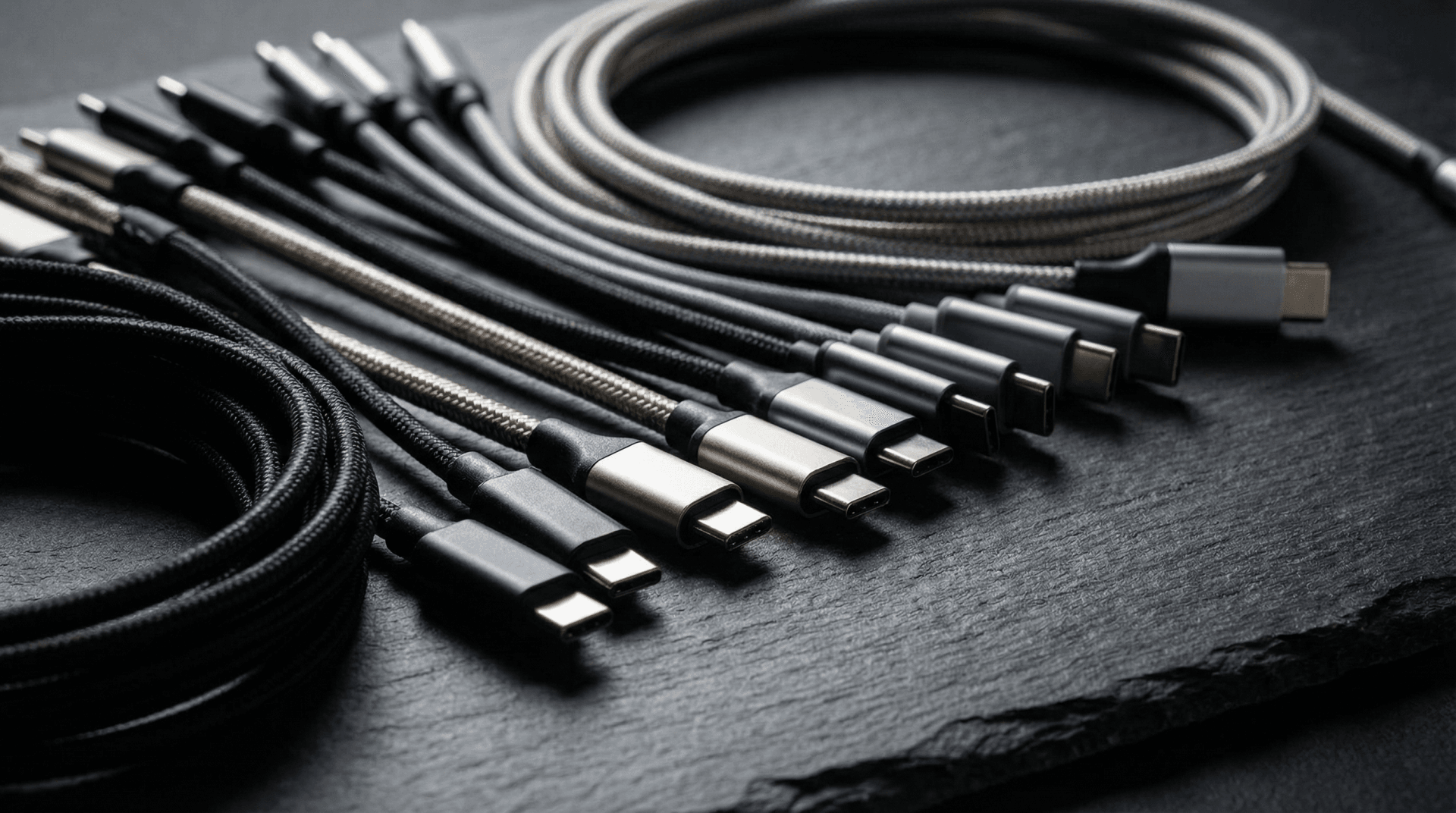
Here’s a fun experiment: walk into any electronics store, pick up two USB-C cables that look absolutely identical, and compare the prices. One is $8. The other is $79. They have the same connector on both ends. They’re roughly the same length. And unless you squint at the tiny print on the packaging — or, let’s be honest, pull out your phone and Google the model number — you have almost no way of knowing what makes one worth ten times more than the other.
This is the USB-C mess in 2026, and it’s somehow gotten worse since the EU forced everyone onto the same plug shape. We now have a single connector that might carry a trickle of data or an absolute firehose of bandwidth, that might charge your phone slowly or power a full laptop, that might drive zero external displays or three of them simultaneously. All through the same little oval port.
I’ve spent the last two months testing docks, cables, and laptops specifically to untangle this, and I’ve read more spec sheets than any person should. Here’s everything I wish someone had told me three years ago.
Contents
- 1 The 30-Second Version
- 2 The Highway Analogy (Bear With Me, It Works)
- 3 Deep Dive: What Each Standard Actually Does
- 4 Why This Matters When You’re Shopping
- 5 What Reddit Gets Wrong (and Right)
- 6 The Cable Problem
- 7 How to Check What Your Laptop Actually Supports
- 8 The Decision Framework: What Do You Actually Need?
- 9 FAQ
- 9.1 Q: Are Thunderbolt 5 ports backward compatible with Thunderbolt 4 and USB devices?
- 9.2 Q: Can I use a Thunderbolt 4 cable with a Thunderbolt 5 port?
- 9.3 Q: My laptop has two USB-C ports but they’re different specs. Why?
- 9.4 Q: Does USB4 Version 2.0 make Thunderbolt 5 unnecessary?
- 9.5 Q: I just need to charge my laptop. Does the cable standard matter?
- 9.6 Q: Why don’t they just put different shaped connectors on different standards?
- 9.7 Q: What’s the best way to future-proof my setup?
The 30-Second Version
If you just want the cheat sheet, here it is. Bookmark this table and pull it up next time you’re shopping.
| Feature | USB 3.2 Gen 2 | USB4 (v1) | Thunderbolt 4 | Thunderbolt 5 |
|---|---|---|---|---|
| Max Data Speed | 10 Gbps | 20-40 Gbps | 40 Gbps | 80 Gbps (120 Gbps asymmetric) |
| Power Delivery | Up to 100W (varies) | Up to 240W (EPR) | Up to 100W (min guaranteed) | Up to 240W (EPR) |
| Min External Displays | 1 (maybe) | 1 | 2x 4K @ 60Hz (guaranteed) | 3x 4K @ 144Hz or 1x 8K @ 60Hz |
| PCIe Tunneling | No | Optional | 32 Gbps (guaranteed) | 64 Gbps |
| Minimum Specs Guaranteed? | Not really | Nope | Yes | Yes |
| Typical Cable Price (2m) | $8-15 | $15-30 | $25-50 | $50-80 |
| Connector Shape | USB-C | USB-C | USB-C | USB-C |
That last row is, of course, the entire problem.
The Highway Analogy (Bear With Me, It Works)
I’m going to use this analogy throughout, so let’s set it up properly.
Think of your USB-C port as a highway on-ramp. Every cable and port uses the same on-ramp shape — that’s the USB-C connector. But the highway behind it? Wildly different.
- USB 3.2 Gen 2 is a two-lane county road. Fine for getting groceries (transferring documents, charging a phone), but you’ll hit a bottleneck fast with anything heavy.
- USB4 is a four-lane highway, but with no guaranteed minimum speed limit. Some stretches might be 40 Gbps. Others might throttle down to 20. The spec allows manufacturers to pick and choose.
- Thunderbolt 4 is a four-lane highway with a guaranteed minimum speed, mandatory rest stops (display support, PCIe lanes), and actual highway patrol enforcing the rules. Intel certifies every device.
- Thunderbolt 5 is an eight-lane interstate with an express lane that can borrow capacity from oncoming traffic when you need it (that’s the 120 Gbps asymmetric mode). It’s overkill for most people. But if you need it, nothing else comes close.
The point is: the on-ramp looks the same. The highway behind it doesn’t.
Deep Dive: What Each Standard Actually Does
USB 3.2 Gen 2 — The Baseline That’s Fine for Most People
Let’s start with the one on most laptops and nearly every peripheral. USB 3.2 Gen 2 gives you 10 Gbps of bandwidth. That’s enough to transfer a 10 GB file in about 8 seconds under ideal conditions (real-world is more like 12-15 seconds with overhead, but still plenty fast).
It supports display output via DisplayPort Alt Mode on some implementations, and power delivery up to 100W on some implementations. Notice I keep saying “some.” That’s because USB 3.2 doesn’t mandate much. A manufacturer can slap a USB 3.2 Gen 2 label on a port that does 10 Gbps data and nothing else — no video, no meaningful charging.
When it’s enough: External SSDs, phone charging, webcams, keyboards, mice, basic docking stations with one display.
When it’s not: Dual-monitor setups, eGPUs, high-speed NVMe enclosures, professional video workflows.
USB4 — Great On Paper, Chaos in Practice
USB4 was supposed to fix the mess. It was built on Thunderbolt 3’s architecture (Intel contributed the spec to the USB-IF), it supports up to 40 Gbps, and version 2.0 goes up to 80 Gbps.
The problem? Almost nothing is mandatory.
A manufacturer can build a USB4 device that maxes out at 20 Gbps instead of 40 and still call it USB4. DisplayPort tunneling? Optional. PCIe tunneling? Optional. The spec is more of a menu than a standard, and OEMs love ordering the cheapest items on the menu.
I’ve tested budget laptops that advertise “USB4” and deliver 20 Gbps with no display output through that port. Technically compliant. Practically misleading.
The one good thing USB4 did: it mandated USB-C as the connector form factor and made power delivery a baseline feature. So at least every USB4 port will charge your devices at some level.
When it’s enough: Most consumers who want fast data transfer and a single external display, as long as you verify the specific USB4 implementation on your device.
When it’s not: When you need guaranteed performance. When you’re buying a $300 dock and need to know it’ll actually work. When “optional” features are the ones you’re counting on.
Thunderbolt 4 — The “It Just Works” Standard
This is where I start getting enthusiastic, and I promise it’s not because Intel is paying me (they aren’t; I bought every test cable myself).
Thunderbolt 4 takes USB4’s architecture and adds something radical: minimum requirements. Every Thunderbolt 4 port must deliver:
- 40 Gbps total bandwidth
- Support for at least two 4K displays at 60Hz
- At least 32 Gbps of PCIe bandwidth (for eGPUs, fast NVMe enclosures)
- Wake-from-sleep on connected peripherals
- Intel VT-d-based DMA protection (security against rogue devices)
That list matters more than the speed number. When I plug a Thunderbolt 4 dock into a Thunderbolt 4 laptop, I know what I’m getting. I don’t need to cross-reference spec sheets, reddit threads, and manufacturer footnotes. It works. Dual monitors light up. My NVMe drive hits full speed. The laptop charges.
It’s been on the market since late 2020, so the ecosystem is mature. Docks are plentiful and have come down in price. Most of the best docking stations for laptops in 2026 are Thunderbolt 4.
When it’s enough: Home office setups with dual monitors, creative professionals with fast storage, developers who use eGPUs, anyone who values reliability over bleeding-edge speed.
When it’s not: 8K workflows, next-gen eGPUs that saturate 32 Gbps of PCIe, or anyone pushing more than two high-refresh displays.
Thunderbolt 5 — Obscene Bandwidth for People Who Need It
Thunderbolt 5, which started showing up in laptops in late 2024 and finally has a decent ecosystem as of early 2026, doubles everything:
- 80 Gbps bidirectional (that’s both directions simultaneously)
- 120 Gbps in asymmetric mode (borrowing bandwidth from the receive channel to boost the send channel, or vice versa — think of it as temporarily converting a four-lane highway into six lanes going one direction and two going the other)
- 64 Gbps PCIe tunneling
- Up to three 4K displays at 144Hz, or one 8K display at 60Hz
- DisplayPort 2.1 support
- USB4 v2 compatible
- Up to 240W power delivery with Extended Power Range
The asymmetric mode is genuinely clever. If you’re pushing pixels to a massive external display and only receiving mouse clicks back, why waste half your bandwidth on the return trip? TB5 lets you shift that capacity where you need it.
I’ve been testing the Thunderbolt 5 implementation on the latest ThinkPad X1 Carbon and the M4 MacBook Pro (check our MacBook Pro M4 vs ThinkPad X1 Carbon 2026 comparison for the full rundown). Driving a 5K monitor at 120Hz while simultaneously hitting 5,800 MB/s on a TB5 NVMe enclosure? No sweat.
When it’s enough: It’s enough for everything right now. That’s kind of the point.
When it’s not: When your budget says no. TB5 docks still run $150-350, and the cables aren’t cheap either. If you’re running one 1080p monitor and a wireless mouse, this is like buying a Ferrari to drive to the mailbox.
Why This Matters When You’re Shopping
Let me give you four real scenarios I see constantly.
Scenario 1: “I just want to plug in one monitor and charge my laptop.” You need: USB 3.2 Gen 2 with DisplayPort Alt Mode and Power Delivery. Or USB4. Or Thunderbolt 4. Or Thunderbolt 5. Literally any of them can do this, but only TB4 and TB5 guarantee it. If you’re buying a new laptop and this is your use case, just make sure the port explicitly supports DP Alt Mode and PD. Don’t assume.
Scenario 2: “I have a dual-monitor desk setup and a laptop dock.” You need: Thunderbolt 4 at minimum. USB4 might support two displays, but it’s not guaranteed. I’ve tested USB4 docks that only pass through a single display even though the spec technically allows two. TB4 mandates dual 4K@60Hz support. No surprises.
Scenario 3: “I edit 4K/8K video and need fast external storage.” You want: Thunderbolt 5 if you can get it, Thunderbolt 4 as a floor. The PCIe bandwidth matters here. TB4’s 32 Gbps is fine for most NVMe drives, but TB5’s 64 Gbps unlocks next-gen storage that’s already hitting the market. For the monitors you’re probably using in this workflow, check our roundup of the best monitors for coding and creative work in 2026.
Scenario 4: “I’m a student on a budget and just need a laptop that works.” Honestly? USB 3.2 with a decent USB-C hub is totally fine. Spend the Thunderbolt premium on more RAM instead. I mean that sincerely. A $40 USB-C hub with HDMI out, a couple USB-A ports, and SD card reader covers 90% of student needs.
What Reddit Gets Wrong (and Right)
I spend a lot of time on r/UsbCHardware, r/thunderbolt, and r/laptops, and the confusion is constant. Here are some real examples that capture the most common misunderstandings.
“I bought a USB4 dock for my new Dell laptop and it only shows one monitor. The dock says it supports two. Is my dock defective?” — r/UsbCHardware, February 2026
Not defective. The dock supports two displays if the host port does. That Dell’s USB4 implementation probably only tunnels one DisplayPort stream. This is exactly the USB4 “optional features” problem I mentioned earlier.
“Why would I pay extra for Thunderbolt when USB4 is basically the same thing?” — r/laptops, March 2026
Because it’s not the same thing. USB4 is the same architecture, but Thunderbolt certification guarantees the minimum specs. It’s the difference between a restaurant that could serve steak and one that promises it’s on the menu.
“Just spent $12 on a USB-C cable and it won’t do video to my monitor. The one that came with my dock works fine. These cables all look the same, how am I supposed to know?” — r/thunderbolt, January 2026
This one hurts because they’re right. The cable labeling situation is genuinely bad, and it’s not the consumer’s fault. Which brings me to…
The Cable Problem
This is the section that might save you the most money and frustration.
Not all USB-C cables are created equal, and the labeling is, to put it charitably, a disaster. Here’s what you need to know:
USB 2.0 cables (the ones that come with most cheap phone chargers) only support 480 Mbps of data. They’ll charge your phone, but plug them into a Thunderbolt dock and you’ll get nothing useful. They look identical to an $80 Thunderbolt 5 cable.
USB 3.2 cables support up to 10 Gbps but may or may not carry video. Look for “SuperSpeed” branding or the SS logo with a “10” next to it.
Thunderbolt 3/4 cables have a lightning bolt icon on the connector. They support 40 Gbps and full display + data + power. If you see the lightning bolt, you’re in good shape for TB4 workflows.
Thunderbolt 5 cables are new, they’re thicker (more wires needed for 80 Gbps), and they use the same lightning bolt icon but sometimes with a “5” designation. They’re backward compatible with TB4, but a TB4 cable will bottleneck a TB5 connection.
Here’s my practical advice: Buy cables from the dock or laptop manufacturer, or from brands that clearly state the spec on the cable itself (CalDigit, Cable Matters, and Anker are generally good about this). Keep a piece of tape or a colored cable tie on your Thunderbolt cables so you can tell them apart from the charging-only cables in your drawer. Seriously. I have a drawer of 30+ USB-C cables and without the tape system I’d lose my mind.
Also: cable length matters more than people think. Thunderbolt 4 passive cables max out at 2 meters before you need to go active (which means electronics in the cable, which means more expensive). Thunderbolt 5 passive cables are even more length-sensitive. If you need a 3-meter run, budget for an active cable.
How to Check What Your Laptop Actually Supports
This comes up so often that I want to give you a concrete checklist.
On Windows:
- Open Device Manager and look under “Universal Serial Bus controllers.” Thunderbolt ports will show up as “Thunderbolt(TM) Controller.” USB4 ports will often show as “USB4 Host Router.”
- Download the free USB Device Tree Viewer tool — it gives you granular details about each port’s capabilities.
- Check your laptop manufacturer’s spec sheet (not the marketing page — the actual technical specifications PDF). Look for terms like “Thunderbolt 4,” “USB4 40Gbps,” or “USB 3.2 Gen 2.” If it just says “USB-C,” assume the worst.
On macOS:
- Click the Apple menu > About This Mac > More Info > System Report.
- Under “Thunderbolt/USB4,” you’ll see each port listed with its maximum speed and current connection info.
- Apple is generally better about this — every USB-C port on modern Macs is at least Thunderbolt 4, and the M4 Pro/Max machines are Thunderbolt 5.
On Linux:
- Run
lsusb -tfor a tree view of your USB devices and their speeds. - For Thunderbolt, check
boltctl listto see connected Thunderbolt devices and their link speeds. dmesg | grep -i thunderboltafter plugging in a device will tell you the negotiated speed.
Physical clues on the laptop itself:
- A lightning bolt icon next to the port = Thunderbolt (3, 4, or 5 — you’ll need the spec sheet to know which)
- A “SS” icon with “10” = USB 3.2 Gen 2 (10 Gbps)
- A plain USB icon or no icon = could be anything, check the specs
- Some manufacturers (Lenovo, HP) print tiny numbers next to ports. Read the manual.
The Decision Framework: What Do You Actually Need?
Let me make this as simple as possible.
You’re fine with USB 3.2 Gen 2 if:
- You use one monitor (connected via HDMI or a simple adapter)
- You don’t use a docking station, or you use a basic USB-C hub
- Your external storage needs are modest (portable SSDs, not NVMe enclosures)
- You want to spend as little as possible on cables and accessories
Step up to Thunderbolt 4 if:
- You use (or plan to use) two external monitors
- You want a single-cable docking station that handles displays, data, power, and Ethernet
- You work with large files and want reliable fast storage performance
- You want to buy accessories with confidence that they’ll work as advertised
- You value the “it just works” factor and don’t want to troubleshoot compatibility
Go Thunderbolt 5 if:
- You drive high-resolution, high-refresh-rate displays (4K@144Hz+, 5K, 8K)
- You work with professional video (ProRes RAW, 8K timelines)
- You use or plan to use next-gen eGPUs or NVMe storage arrays
- You already have (or plan to buy) TB5-compatible peripherals
- Future-proofing is worth the premium to you
And honestly? For probably 70% of laptop buyers in 2026, Thunderbolt 4 is the sweet spot. It’s mature, the accessories are affordable, and the guaranteed minimum specs mean you don’t have to become a cable expert. TB5 is fantastic but the ecosystem is still catching up to the ports, and USB 3.2 is fine if you know its limits.
FAQ
Q: Are Thunderbolt 5 ports backward compatible with Thunderbolt 4 and USB devices?
Yes. TB5 is fully backward compatible with TB4, TB3, USB4, and USB 3.x devices. You’ll just operate at the lower device’s maximum speed. A TB5 port with a TB4 dock gives you TB4 speeds.
Q: Can I use a Thunderbolt 4 cable with a Thunderbolt 5 port?
You can, but you’ll be limited to 40 Gbps (TB4 speeds). To get full TB5 bandwidth, you need a TB5-rated cable.
Q: My laptop has two USB-C ports but they’re different specs. Why?
Cost and motherboard layout. It’s cheaper to run one port through the Thunderbolt controller and route the other through a standard USB controller. This is extremely common. Always check which port is which — it usually says in the manual, or look for the lightning bolt icon.
Q: Does USB4 Version 2.0 make Thunderbolt 5 unnecessary?
On paper, USB4 v2.0 matches TB5’s 80 Gbps. In practice, TB5 still guarantees minimum specs that USB4 v2.0 doesn’t. We’re back to the “mandatory vs optional features” divide. If a device is USB4 v2.0 certified, read the fine print.
Q: I just need to charge my laptop. Does the cable standard matter?
For charging only, any USB-C cable rated for the wattage you need will work. A $10 USB-C cable with 100W PD support will charge a 96W laptop just fine. You don’t need Thunderbolt for power delivery alone.
Q: Why don’t they just put different shaped connectors on different standards?
I ask myself this at least once a week. The short answer is that the entire industry agreed on USB-C as the universal connector, and the EU mandated it. The long answer involves standards committees, backward compatibility mandates, and a lot of well-intentioned decisions that created an accidental mess.
Q: What’s the best way to future-proof my setup?
Buy a Thunderbolt 4 or 5 laptop, invest in a quality TB4 dock (they’re reasonably priced now and will work with TB5 hosts), and buy properly rated cables. That setup will handle anything you throw at it for the next 3-5 years, easily.