Everyone talks about chairs. I wrote an entire 2,300-word guide on ergonomic chairs because they matter. But here’s what nobody tells you: you can sit in a $1,400 Herman Miller Aeron and still end up with wrist pain, neck strain, and lower back issues if the rest of your setup is wrong. The chair is maybe 40% of the ergonomics equation. The other 60% — monitor height, keyboard position, desk height, lighting, and how you actually sit — is what this guide covers.
I spent eight years ignoring ergonomics beyond my chair. I now have a physical therapist I see monthly for neck tension that took two years to develop and will probably take another year to fully resolve. Learn from my expensive, painful mistake.
On this page
The 5 Ergonomic Rules That Actually Matter
1. Monitor Height: Your Eyes Should Hit the Top Third
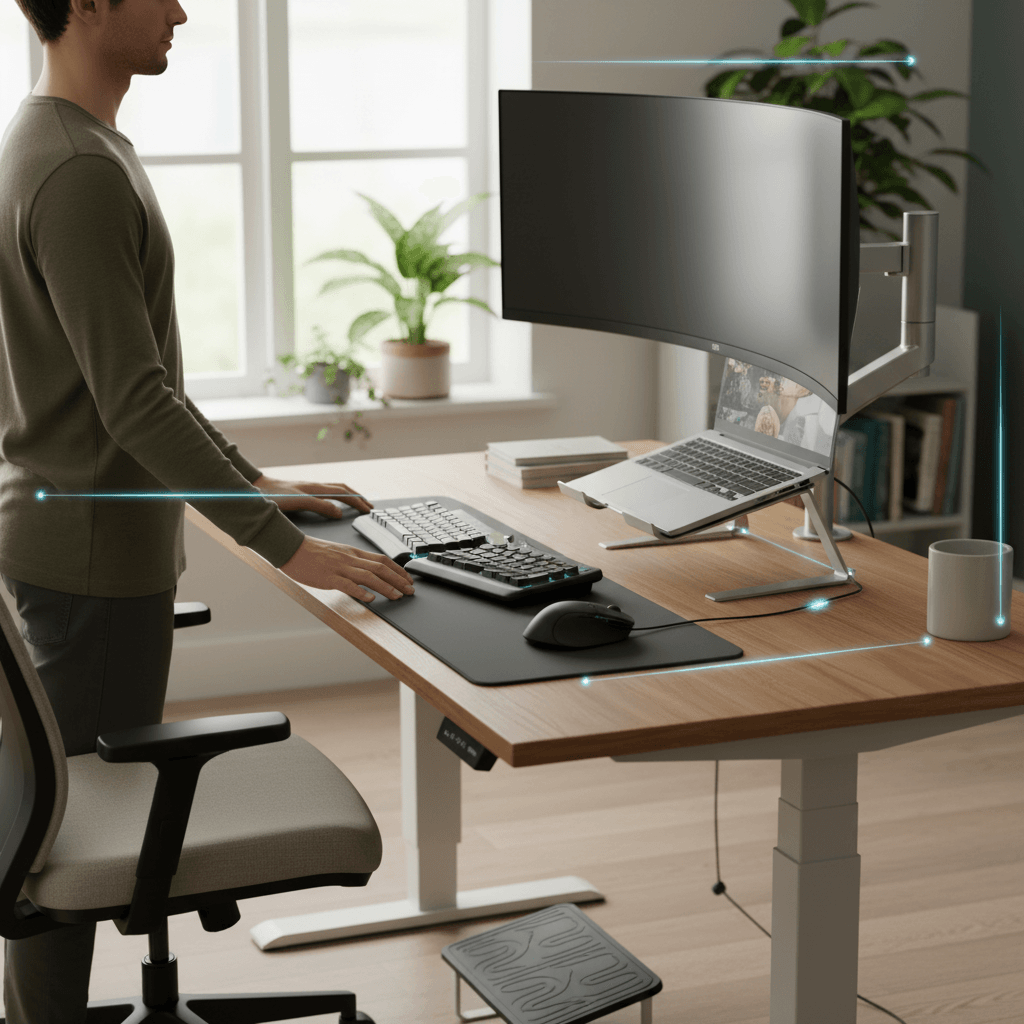
The top of your monitor screen should be at or slightly below eye level. When you look straight ahead with your head neutral (not tilted up or down), your eyes should land on the upper third of the screen. This means you look slightly downward to read — which is the natural resting position for your eyes and keeps your neck neutral.
The common mistake: Laptop users stare down at a screen that’s 8-12 inches below eye level, creating a forward head posture that puts 30-40 pounds of pressure on neck muscles. If you use a laptop as your primary machine, an external monitor or a laptop stand + external keyboard is not optional for long-term health. The monitors from my coding monitors guide all have height-adjustable stands for exactly this reason.
Quick fix: Stack books under your monitor until the top edge aligns with your eyebrows. Or buy a $25 monitor arm that gives infinite height adjustment. For laptops: a $30 laptop stand raises the screen, but you’ll need an external keyboard and mouse (which you should have anyway).
2. Keyboard and Mouse Position: Elbows at 90 Degrees
Your elbows should bend at approximately 90 degrees when typing, with your forearms parallel to the floor. Your wrists should be straight — not angled up (keyboard too high), not angled down (keyboard too low), not bent sideways. Your shoulders should be relaxed, not hunched up toward your ears.
The common mistake: Desk too high, causing shoulders to hunch and wrists to angle upward. Or desk too low, causing you to lean forward. Most standard desks are 28-30 inches high, which is correct for people 5’8″ to 6’0″. If you’re shorter, a keyboard tray that lowers the keyboard below desk height is the fix. If you’re taller, a sit-stand desk at custom height works.
Quick fix: Raise your chair until your elbows are at 90 degrees with the keyboard. If your feet no longer reach the floor, add a footrest. This sounds silly but it’s the correct solution — adjust the chair to the desk, then adjust your feet to the chair.
3. The 20-20-20 Rule for Eye Strain
Every 20 minutes, look at something 20 feet away for 20 seconds. This relaxes the ciliary muscles that focus your eyes at screen distance. It’s the single most effective habit for reducing digital eye strain, headaches, and the “my eyes feel tired” sensation that hits at 4pm.
The honest truth: Nobody remembers to do this naturally. Set a timer. Use an app (EyeLeo for Windows, Time Out for Mac). Or position your desk so you naturally look up at a window occasionally. The programmers on r/programming who report the least eye strain universally mention either the 20-20-20 rule or having a window in their peripheral vision.
4. Lighting: Indirect Is Everything
Your monitor should not be the brightest thing in the room. And there should be no light source directly behind the monitor creating glare on the screen. Ideal lighting: ambient room light that’s 50-75% of your monitor brightness, with no direct glare, reflections, or hot spots on the screen.
The common mistake: A bright window directly behind the monitor, forcing your eyes to constantly adjust between the dark screen and bright background. Or overhead fluorescent lighting reflecting on the screen surface. Both cause eye strain faster than any screen setting.
Quick fix: Position your desk perpendicular to windows (window to the side, not behind or in front of the monitor). Use a desk lamp with adjustable warm/cool temperature for task lighting. Bias lighting — a $15 LED strip behind your monitor — reduces perceived contrast between the screen edge and the dark wall behind it, measurably reducing eye strain.
5. Movement: The Best Posture Is Your Next Posture
There is no single “perfect” sitting position. The human body is designed to move, not to hold any static position for eight hours. The healthiest approach is frequent position changes: sit for 45 minutes, stand for 15 minutes, walk for 5 minutes. Shift your weight. Cross your legs, then uncross them. Lean back, then sit up.
A sit-stand desk from my standing desk converter guide facilitates this naturally. But even without one, simply standing up to get water, walking to a window for the 20-20-20 rule, or doing a 60-second stretch every hour makes a measurable difference in back pain and energy levels.
The Ergonomic Desk Audit: 5-Minute Self-Check
Sit at your desk right now and check these five things:
| Check | Good | Bad | Fix |
|---|---|---|---|
| Monitor height | Top of screen at eye level | Looking down more than 15 degrees | Monitor arm or books under monitor |
| Elbow angle | ~90 degrees, forearms parallel to floor | Shoulders hunched up or arms reaching | Adjust chair height, add keyboard tray |
| Wrist position | Straight, neutral | Angled up, down, or sideways | Keyboard tilt adjustment, wrist rest |
| Feet | Flat on floor or footrest | Dangling or tucked under chair | Lower chair or add footrest ($20) |
| Screen distance | Arm’s length (~20-26 inches) | Closer than 20″ or farther than 30″ | Move monitor or adjust desk depth |
FAQ
Are standing desks actually better for you?
Standing all day is not better than sitting all day — both cause problems. The benefit of a standing desk is enabling position changes throughout the day. The research supports alternating between sitting and standing every 30-60 minutes. If you stand still for 4 hours straight, you’ll develop foot, knee, and lower back issues just as surely as sitting causes them.
Do I need a wrist rest?
Only if you bottom out your wrists on the desk edge while typing. A wrist rest should support your palms during breaks between typing, not while actively typing — resting your wrists on any surface while typing forces your fingers to reach upward, straining forearm muscles. The correct typing posture: wrists floating, fingers reaching down to keys. The wrist rest is for pauses.
Is a trackpad more ergonomic than a mouse?
Neither is inherently better. The key is wrist position — your hand should be in a neutral position without bending sideways. Vertical mice (like the Logitech MX Vertical) put your hand in a “handshake” position that reduces forearm twist. Standard mice cause pronation. Trackpads allow flat hand position but require more finger movement. If you have wrist issues, try a vertical mouse first — most people with mouse-related RSI report improvement.
How much should I invest in ergonomics?
A full ergonomic setup (good chair, monitor arm, keyboard tray, footrest, desk lamp) costs $500-800 on top of your existing furniture. That sounds like a lot until you compare it to a single physical therapy session ($150-300 per visit) or the productivity cost of chronic pain. If you work at a desk more than 6 hours daily, ergonomic equipment pays for itself within a year in avoided healthcare costs and improved comfort.