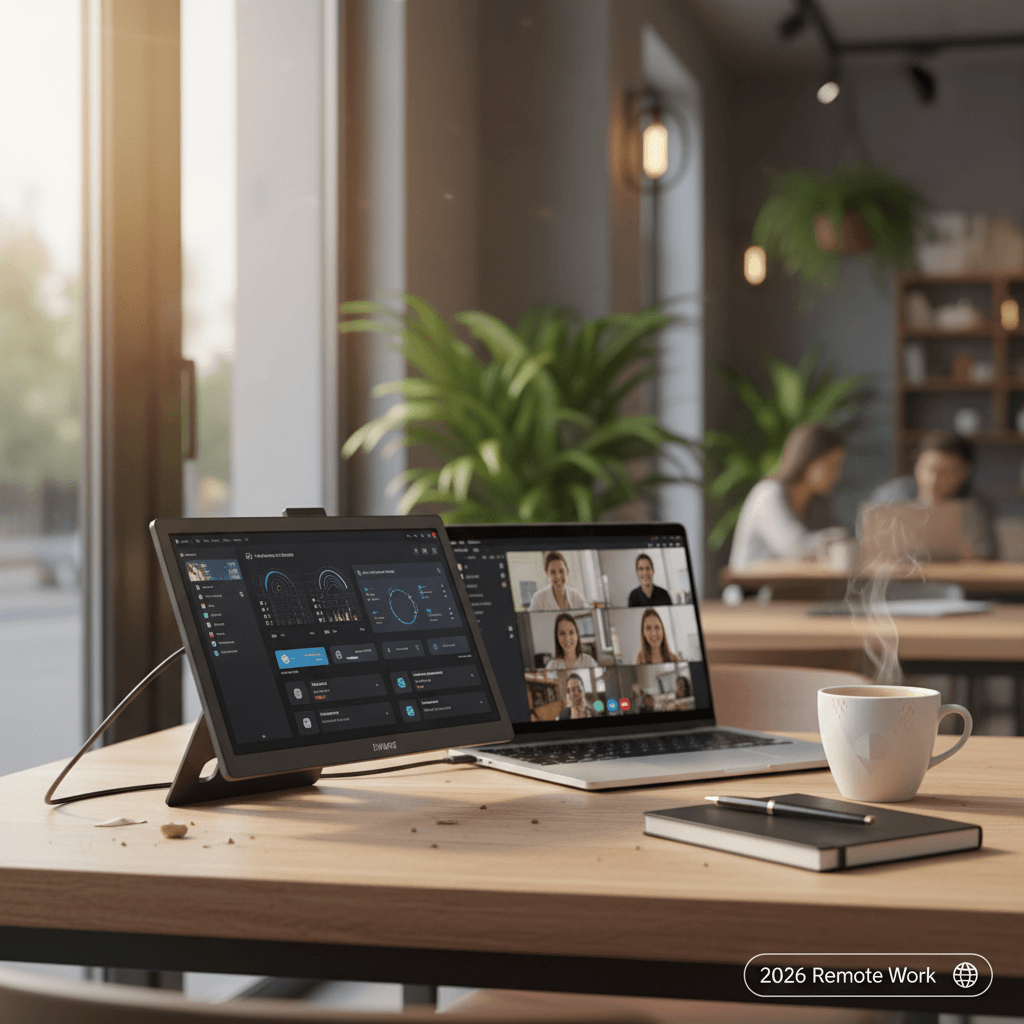
Working from a laptop screen is fine until you need two documents open side by side, or you’re comparing code files, or you’re on a Zoom call while trying to reference notes. Then it’s not fine — it’s alt-tabbing hell. The dual-monitor setup I have at home has spoiled me, and every time I work remotely from a cafe or co-working space, I feel the absence of that second screen like a phantom limb.
Portable monitors fix this. They’re USB-C powered, weigh 1-2 pounds, and give you a second display anywhere you can open a laptop. The category has exploded in the last two years — there are now hundreds of options between $100 and $400, and the quality range is enormous. Some have genuine IPS panels with good color accuracy. Others have washed-out screens with brightness levels that become invisible near a window.
I tested five portable monitors over the past six weeks, using each one as my daily second screen across cafes, co-working spaces, airport lounges, and hotel rooms. If you’re building out a broader remote setup, our remote work tech essentials guide covers the full picture, and the docking station guide handles the at-home complement.
Quick Verdict
| Monitor | Price | Size | Resolution | Brightness | Weight | Best For |
|---|---|---|---|---|---|---|
| ASUS ZenScreen MB16QHG | ~$300 | 16″ | 2560×1600 | 350 nits | 1.8 lbs | Overall best |
| Lenovo ThinkVision M15 | ~$220 | 15.6″ | 1920×1080 | 300 nits | 1.3 lbs | Lightest / travel |
| Innocn 15K1F | ~$260 | 15.6″ | 1920×1080 OLED | 400 nits | 1.6 lbs | Best display quality |
| UPERFECT UPlays K5 | ~$160 | 15.6″ | 1920×1080 | 300 nits | 1.5 lbs | Best value |
| ViewSonic VG1655 | ~$250 | 15.6″ | 1920×1080 | 250 nits | 1.75 lbs | Enterprise / IT |
The Reviews
ASUS ZenScreen MB16QHG — The One That Feels Like a Real Monitor
Price: ~$300 | Size: 16″ | Resolution: 2560×1600 | Brightness: 350 nits | Weight: 1.8 lbs
The ZenScreen MB16QHG is the only portable monitor I’ve used that doesn’t feel like a compromise. The 2560×1600 resolution at 16 inches gives you genuinely usable real estate — you can fit a full document or code editor at readable font sizes without squinting. The 1080p monitors on this list all feel cramped by comparison once you’ve experienced the extra vertical pixels.
Brightness is the deciding spec for portable monitors, and the ZenScreen delivers 350 nits measured — enough to remain readable next to a window in a well-lit cafe. In a dim co-working space, I kept it at 60% and it was comfortable. The IPS panel has decent color accuracy (sRGB 100%, Delta E < 3 out of the box), which matters if you’re doing any design or photo work on the go.
The built-in kickstand is sturdy enough for the monitor but requires a flat surface — no lap use, no propping on a book. ASUS includes a magnetic smart cover that doubles as a stand, which works but adds thickness. USB-C single-cable connection worked instantly with my MacBook Pro and ThinkPad X1 — no drivers, no adapters. It draws about 8W from the laptop, which shortens battery life by roughly 45-60 minutes.
At $300, it’s the priciest option here. The 2560×1600 resolution justifies it for anyone who will use this monitor regularly, but if you only need a second screen a few times a month, the UPERFECT at $160 does 80% of the job.
The good: 2560×1600 resolution, bright and color-accurate, USB-C single cable, solid build. The less good: Most expensive, heaviest at 1.8 lbs, kickstand requires flat surface, smart cover is bulky.
Lenovo ThinkVision M15 — Disappears Into Your Bag
Price: ~$220 | Size: 15.6″ | Resolution: 1920×1080 | Brightness: 300 nits | Weight: 1.3 lbs
The ThinkVision M15 weighs 1.3 pounds — less than most tablets. When I packed it in my backpack alongside my laptop, I genuinely forgot it was there until I sat down at the cafe and pulled it out. For frequent travelers who carry their workspace everywhere, this is the portable monitor that won’t make your back hate you by the end of the day.
Lenovo achieved this weight partly through thin bezels and aluminum construction, but also by omitting features. There are no built-in speakers, no kickstand (you use the included fold-out cover), and the OSD controls are limited to two buttons. The panel is a standard IPS at 1080p — sharp enough at 15.6 inches, but you’ll notice the pixel density difference coming from a Retina display or the ASUS ZenScreen’s higher resolution.
Enterprise compatibility is strong. The ThinkVision worked with every device I tested: MacBook Pro, ThinkPad, Dell XPS, Samsung Galaxy S24 (via DeX), and an iPad Pro. Two USB-C ports mean you can daisy-chain a charger through the monitor to your laptop — one cable for display, one for power pass-through. Practical and tidy.
“The ThinkVision M15 has been in my carry-on for 18 months of business travel. It’s the only portable monitor that I don’t think about packing — it weighs nothing and just works with every laptop I’ve encountered. Worth every penny for road warriors.” — u/enterprise_road_warrior, r/thinkpad
The good: Lightest in class, excellent compatibility, power pass-through, business-grade build. The less good: 1080p only, no built-in speakers, fold-out cover stand is flimsy, limited OSD.
Innocn 15K1F — The OLED Difference Is Real
Price: ~$260 | Size: 15.6″ | Resolution: 1920×1080 OLED | Brightness: 400 nits | Weight: 1.6 lbs
Every other monitor on this list uses an IPS panel. The Innocn uses OLED. The difference is immediately visible — true blacks that are actually black instead of dark gray, infinite contrast ratio, and colors that pop without looking oversaturated. Text on a dark background (dark mode, terminal, code editors) looks stunning because the black pixels emit zero light.
At 400 nits, it’s the brightest monitor here. Combined with OLED’s contrast advantage, it remained readable in every lighting condition I tested — direct sunlight through a cafe window, overhead fluorescents in a co-working space, dim hotel room lighting. Where the IPS monitors started washing out near windows, the Innocn stayed punchy.
The trade-offs are OLED-specific: potential burn-in with static content (taskbars, IDE toolbars) over long periods, and higher power draw than IPS (about 10W versus 7-8W). For a portable monitor that you’re using a few hours at a time rather than as a permanent display, burn-in is a non-concern. The power draw is noticeable — my MacBook Pro lost about 15% more battery per hour compared to the ASUS IPS panel.
If you care about display quality and work in varied lighting conditions, the OLED panel is worth the money. If you’re mostly working in dim environments and want max battery life from your laptop, IPS is the practical choice. Our best monitors for coding guide covers full-size panel selection in more depth.
The good: OLED panel with true blacks, brightest in test, excellent for varied lighting, great contrast. The less good: Higher power draw, burn-in risk for static content, 1080p limits pixel density, Innocn brand less established than ASUS/Lenovo.
UPERFECT UPlays K5 — The Budget Pick That Doesn’t Embarrass Itself
Price: ~$160 | Size: 15.6″ | Resolution: 1920×1080 | Brightness: 300 nits | Weight: 1.5 lbs
The UPERFECT K5 costs $160 and performs like a $200 monitor. The IPS panel is decent — not the widest viewing angles and the colors lean slightly cool out of the box — but it’s sharp, bright enough for indoor use, and flicker-free. After calibrating brightness and contrast through the OSD, it’s a perfectly serviceable second screen for email, documents, and reference material.
Build quality is where you feel the price cut. The plastic housing flexes slightly when picked up, and the included stand is a two-piece magnetic cover that works but doesn’t inspire confidence on unstable surfaces. The USB-C cable is short (about 4 feet), which limits placement options relative to your laptop. I bought a longer cable for $8 and the problem went away.
For $160, this is the monitor I’d recommend to someone who wants to try portable dual-screen work without committing $300. If you use it twice a week, the cost-per-use payoff comes quickly. If you use it daily and start wishing for higher resolution or brighter output, upgrade to the ASUS.
The good: Excellent value, adequate panel quality, lightweight, simple setup. The less good: Plastic build, short cable, no power pass-through, limited brightness for outdoor-adjacent use.
ViewSonic VG1655 — The IT Department Choice
Price: ~$250 | Size: 15.6″ | Resolution: 1920×1080 | Brightness: 250 nits | Weight: 1.75 lbs
The VG1655 is the monitor you’d find on a corporate equipment list. ViewSonic focuses on enterprise features: a sturdy integrated kickstand with adjustable tilt, a Kensington lock slot, and a 3-year warranty that’s easy to claim through IT procurement channels. The build quality is solid — metal frame, no flex, no wobble.
The panel itself is the weakest here. At 250 nits, it’s the dimmest on the list, and it shows in well-lit environments. Near a window, it’s barely usable. The color accuracy is fine for office work but noticeably worse than the ASUS or Innocn for anything creative. For spreadsheets, Slack, and email on a second screen, it’s adequate. For anything where color or brightness matters, look elsewhere.
I include it because some buyers need a portable monitor that their company will approve, reimburse, and support. The VG1655 ticks those boxes — it’s from a major brand with enterprise support, it has a real warranty, and it works reliably. If your company is buying, this is the one to put on the expense report. If you’re buying for yourself, the Lenovo or ASUS are better use of your money.
The good: Enterprise-grade build, adjustable kickstand, Kensington slot, 3-year warranty. The less good: Dimmest panel, weakest color accuracy, enterprise pricing for consumer-grade specs.
What to Know Before Buying
Power draw matters. Portable monitors draw 7-12W from your laptop’s USB-C port. On a MacBook Air with a 52Wh battery, that’s roughly 60-90 minutes of reduced battery life. If you’re working from a cafe without an outlet, factor this in. The IPS monitors (7-8W) are more efficient than the OLED (10W).
Not all USB-C ports support video. Your laptop’s USB-C port needs to support DisplayPort Alt Mode to drive a portable monitor. Most modern laptops do, but some budget models only have USB-C for charging and data — no video output. Check your laptop specs before buying. Thunderbolt 3/4 ports always support video. Our USB-C vs Thunderbolt guide explains the differences.
Resolution vs brightness: pick your priority. In bright environments, a 1080p panel at 350 nits is more usable than a 1440p panel at 250 nits. Resolution only matters if you can actually see the screen clearly. If you primarily work in well-lit spaces, prioritize brightness (300+ nits). If you work in dim environments, prioritize resolution.
The stand makes or breaks it. A flimsy stand on a cafe table that wobbles is infuriating. The ViewSonic’s integrated kickstand is the best here. The ASUS smart cover works well on flat surfaces. The Lenovo and UPERFECT fold-out covers are functional but unstable on uneven surfaces. Consider a small $15 tablet stand as a universal upgrade.
FAQ
Can I use a portable monitor with a phone?
Yes, if your phone supports USB-C video output (DisplayPort Alt Mode). Samsung Galaxy S-series phones work via DeX mode. Google Pixel phones work with a simple USB-C cable. iPhones do not support portable monitors via USB-C (Apple restricts external display to Lightning-to-HDMI adapters or AirPlay).
Do portable monitors need their own power source?
Most are bus-powered — they draw power from your laptop’s USB-C port. Some higher-brightness or larger models have optional external power via a second USB-C port. For typical 15.6″ 1080p monitors, your laptop provides enough power. If your laptop has a lower-wattage USB-C port (some ultrabooks), the monitor may dim automatically to stay within power limits.
Is a portable monitor better than a tablet as a second screen?
For a dedicated second display: yes. Portable monitors have lower latency, higher brightness, and native display input — no app required. Tablets used as second screens (via Sidecar on iPad, or apps like Duet) add latency, use Wi-Fi bandwidth, and have smaller usable screen area due to tablet bezels and software UI. If you already own a tablet, try it as a second screen before buying a dedicated monitor — it might be good enough.
How do I carry a portable monitor safely?
Most come with a protective case or cover. That’s usually sufficient for a laptop bag. Don’t put the monitor in the same sleeve as your laptop — the two screens pressing against each other can cause pressure damage. Use the monitor’s cover, place it in a separate compartment, or buy a $15 neoprene sleeve. Our desk setup guide covers how portable monitors fit into a broader productivity workflow.
Ethan Caldwell writes this article on a cafe table with a ZenScreen next to his laptop, feeling only slightly self-conscious about his two-screen cafe setup. More at WU120 Best Picks.