What three years of working from home actually taught the community — and the only gear that made the cut.
By early 2023, most of us had already been through the pandemic-era WFH scramble: the kitchen-table laptop phase, the impulse Amazon cart full of gadgets that ended up in a closet, the slowly dawning realization that your back was not going to forgive you for that dining chair. Now, in 2026, the dust has settled. The remote work subreddits — r/workfromhome, r/remotework, r/homeoffice, and r/digitalnomad — have collectively stress-tested thousands of products over three full years of daily use. What survived is surprisingly minimal.
This is not a listicle of shiny new releases. This is the battle-hardened, community-vetted list of what actually matters when you work from home full-time. If you are building or upgrading your remote setup in 2026, start here and ignore the noise.
Contents
- 1 The 5 Non-Negotiable Items for Remote Work in 2026
- 2 The “Nice to Have” Tier
- 3 What Your Employer Should Pay For (and How to Ask)
- 4 The Digital Nomad Variant: A Travel-Friendly WFH Kit Under $500
- 5 Common WFH Mistakes (and How to Avoid Them)
- 6 Frequently Asked Questions
- 7 Building Your Setup the Smart Way
The 5 Non-Negotiable Items for Remote Work in 2026
After years of threads, reviews, and heated debates across multiple subreddits, the community has converged on five categories that genuinely affect your ability to do your job well from home. Everything else is either a luxury or a distraction. Here they are, in order of impact.
1. A Reliable Webcam (Not Expensive — Just Well-Lit)
This one surprises people. You do not need a 4K webcam. You do not need the latest Insta360 Link or an Opal C1. What you need is a webcam that produces a clean, well-exposed image in your actual lighting conditions. The most upvoted advice on r/workfromhome year after year is the same: spend money on lighting, not on the camera.
A $60-$80 webcam paired with a $30 ring light or a desk lamp positioned correctly will outperform a $300 webcam in a dark room every single time. The Logitech C920 and its successors remain the default recommendation for a reason — they are reliable, widely compatible, and good enough for any professional video call.
“I spent $200 on a webcam and looked worse than my coworker with a C920 and a $15 LED panel from Amazon. Lighting is 90% of the equation.” — r/remotework user, 2025
If you are shopping for one now, check our breakdown of the best webcams for remote work in 2026, sourced entirely from Reddit recommendations and real-world testing.
2. A Proper Headset or Headphones With a Good Mic
Bad audio is a career liability in remote work. Your manager might not notice your webcam quality, but they will absolutely notice if you sound like you are calling from a tunnel. The community consensus has shifted over the past three years: dedicated gaming headsets and cheap USB mics have fallen out of favor. The two paths that dominate the recommendations now are:
- Premium ANC headphones with a built-in mic — the Sony WH-1000XM5 and now the XM6 are the default picks. They handle calls, block out noise, and double as personal listening devices.
- A simple USB headset — for people who just want something that works and do not care about music quality. The Jabra Evolve2 series and Poly Voyager line get mentioned constantly.
The key insight from r/homeoffice is that microphone quality matters more than speaker quality for remote work. Your coworkers hear your mic; only you hear your speakers. Prioritize accordingly.
We put the current community favorite through a full evaluation — read the Sony WH-1000XM6 review for the details.
3. A Second Monitor or Ultrawide
If there is one upgrade that the WFH community agrees on unanimously, it is this: a single laptop screen is not enough for full-time work. The productivity difference between one screen and two is not marginal. It is transformative. You stop alt-tabbing between Slack and your actual work. You can have documentation open alongside your editor. You can see your calendar while writing an email.
The debate within the community is between two monitors versus one ultrawide. The general consensus on r/homeoffice:
- Dual monitors — cheaper, more flexible, easier to replace one if it dies. Best for general knowledge work.
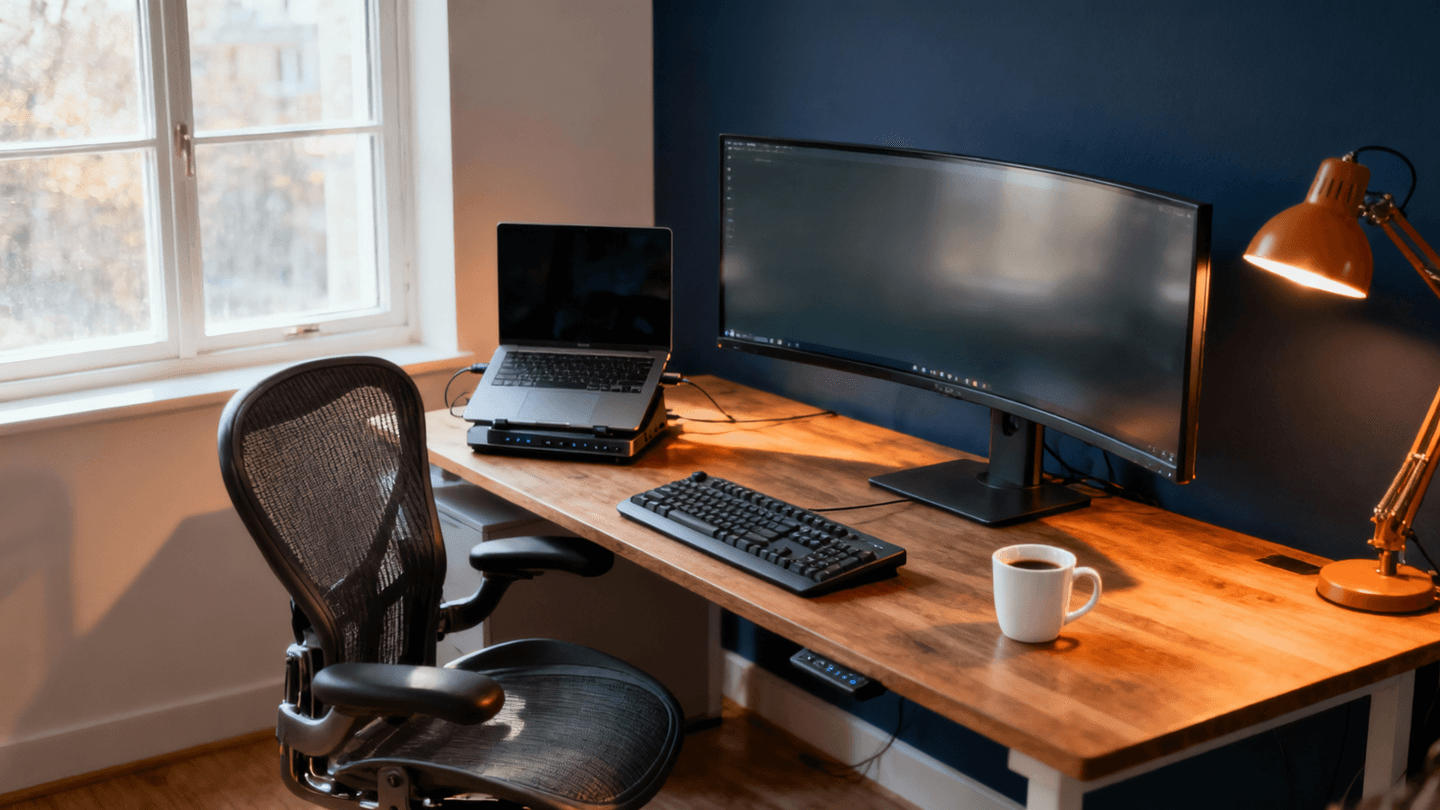
- Ultrawide (34″ or 38″) — cleaner desk look, no bezel gap, better for coding and design. Higher upfront cost.
Either way, the advice is clear: do not work full-time on a laptop screen alone if you can avoid it. Even a cheap 24″ IPS monitor as a secondary display is a massive upgrade.
For specific model recommendations, especially if you write code, see our guide to the best monitors for coding in 2026.
4. An Ergonomic Chair (The Used Aeron Is Still the Meta)
Three years in, and the r/homeoffice community has not budged on this one. The Herman Miller Aeron, bought used from an office liquidator for $400-$600, remains the single most recommended piece of remote work furniture. It is not glamorous advice, but it is honest: a properly adjusted ergonomic chair will do more for your long-term health and daily comfort than any other purchase on this list.
The used market is the key. Companies downsize, offices close, and high-end chairs flood liquidation sales. A used Aeron in good condition is functionally identical to a new one — and it costs a third of the price.
“Bought a used Aeron for $450 in 2023. It’s 2026 and it still feels brand new. Best WFH purchase I’ve ever made, and it’s not close.” — r/workfromhome user
Other chairs that get regular mentions include the Steelcase Leap V2 (also excellent used), the Herman Miller Mirra 2, and the Haworth Fern. The common thread is that all of these are commercial-grade office chairs designed for 8+ hours of daily use. Gaming chairs and cheap Amazon office chairs consistently get negative reviews after 6-12 months of full-time use.
For the full desk and chair setup breakdown, see our ultimate productivity desk setup guide.
5. A Docking Station for a Single-Cable Setup
This is the item people discover last but wish they had discovered first. A USB-C or Thunderbolt docking station lets you connect your laptop to your monitor, keyboard, mouse, webcam, ethernet, and charger with a single cable. You sit down, plug in one cable, and everything works. You stand up, unplug one cable, and you are mobile.
The quality-of-life improvement is significant. No more fumbling with three or four cables every time you sit down at your desk. No more forgetting to plug in your charger and having your laptop die mid-afternoon. The single-cable workflow is one of those things that sounds minor but fundamentally changes how frictionless your work-from-home experience feels.
The most recommended docking stations on r/homeoffice tend to come from CalDigit, Anker, and Plugable. The main thing to check is compatibility with your laptop’s port type (USB-C vs. Thunderbolt 4 vs. Thunderbolt 5) and how many monitors it can drive at your desired resolution.
We have a dedicated comparison of the best docking stations for laptops in 2026 if you need help picking one.
The “Nice to Have” Tier
Once you have the five essentials locked down, there is a second tier of upgrades that the community frequently recommends but does not consider mandatory. These are the items that improve your setup from “solid” to “genuinely enjoyable.”
- Standing desk or sit-stand converter — The health benefits of alternating between sitting and standing are well-documented at this point. A motorized standing desk from FlexiSpot or Uplift in the $400-$600 range gets recommended often. That said, plenty of people on r/homeoffice admit they bought one and rarely use the standing feature. It is a personal preference.
- Mechanical keyboard — This is where the rabbit hole gets deep. The r/mechanicalkeyboards community is its own universe. For remote work purposes, a decent mechanical keyboard with tactile or linear switches simply feels better to type on for 8 hours a day. Popular entry points include the Keychron Q series and the HHKB for those who prefer Topre switches. Just make sure you get something relatively quiet if you are frequently on calls.
- Monitor light bar — A BenQ ScreenBar or one of its many clones clips to the top of your monitor and illuminates your desk without creating glare on your screen. It also lights your face for video calls. It is one of those $40-$80 purchases that people consistently describe as “surprisingly impactful.” Not essential, but a smart addition if you work in a room with mediocre overhead lighting.
What Your Employer Should Pay For (and How to Ask)
This is a topic that comes up constantly on r/remotework, and the answer has evolved as remote work has matured. In 2026, most companies with established remote or hybrid policies offer some form of home office stipend. The range varies wildly — from $200 one-time allowances to $1,000+ annual budgets — but the precedent is well-established.
Here is what the community recommends when it comes to asking:
- Check your employee handbook first. Many companies already have a policy that employees simply do not know about. HR or your onboarding documentation may reference a home office reimbursement program.
- Frame it as a productivity and retention investment. Do not ask for “stuff.” Ask for the tools you need to perform at your best. A $500 ergonomic chair is cheaper for the company than the back pain that leads to reduced output or medical claims.
- Be specific. Submit a list with prices. “I’d like a home office stipend” is vague. “I’d like to purchase an ergonomic chair ($500), a monitor ($300), and a docking station ($150) for my home office” is actionable.
- Reference industry norms. Companies like GitLab, Automattic, and Shopify have published their home office stipend policies. Use them as benchmarks if your company does not have a clear standard.
“I asked my manager for a $1,000 home office budget by sending a one-page doc listing every item, the price, and a one-line explanation of why it would help me work better. Got approved the same week.” — r/remotework user
If your company does not offer any stipend at all, it is still worth asking. The worst they can say is no, and many managers have discretionary budget they can use for equipment requests. You also may be able to deduct home office expenses on your taxes depending on your employment status and jurisdiction — consult a tax professional for specifics.
The Digital Nomad Variant: A Travel-Friendly WFH Kit Under $500
The r/digitalnomad community has its own take on WFH essentials, optimized for portability rather than permanence. If you work from co-working spaces, Airbnbs, or cafes, here is the sub-$500 kit that gets recommended most often:
- Portable monitor (15.6″ USB-C) — $150-$200. Brands like ASUS ZenScreen and Lepow are popular. Gives you a second screen anywhere without taking up much bag space.
- Compact Bluetooth headphones with ANC — $80-$150. The Sony WH-1000XM6 if you can stretch the budget, or the Anker Soundcore Space series for a budget option.
- Lightweight laptop stand — $25-$40. Roost and Nexstand are the two names that come up in every thread. Gets your screen to eye level, which matters enormously when you are working from a random table.
- Compact travel keyboard and mouse — $50-$80. The Logitech MX Keys Mini and MX Anywhere 3S combo is the default recommendation. Both are compact, reliable, and work over Bluetooth.
- Small USB-C hub — $30-$50. Not a full docking station, but enough to connect a monitor, charge your laptop, and plug in a USB device or two.
Total for a solid nomad kit: roughly $350-$500 depending on what you already own. The philosophy here is different from a permanent home office — you want things that are light, durable, and fit in a backpack. You sacrifice screen real estate and ergonomic perfection for mobility. It is a tradeoff, but it works.
Common WFH Mistakes (and How to Avoid Them)
Three years of community wisdom has also produced a clear list of things not to do. These are the mistakes that show up in “what would you do differently” threads over and over again.
Buying Too Much Too Fast
The most common regret on r/homeoffice is buying a full setup in one shopping spree before understanding what you actually need. People buy standing desks they never stand at, monitor arms they do not need, cable management kits for problems they do not have. The better approach: start with the essentials, work for a few weeks, and then figure out what is actually bothering you. Let your real daily friction guide your purchases.
Ignoring Lighting
This applies to both video call quality and your own well-being. Working in a dim room with a bright screen all day causes eye strain, headaches, and fatigue. A well-lit workspace with natural light (or good artificial light) makes a meaningful difference in how you feel at the end of the day. It also makes you look dramatically better on camera, which — fair or not — matters in a remote environment where video calls are your primary face-to-face interaction.
Cheaping Out on the Desk Chair
A $100 Amazon office chair will feel fine for the first month. By month three, you will be shifting constantly. By month six, your back will hurt. By month twelve, you will be shopping for an Aeron anyway. The community’s advice is near-universal: buy the good chair first. It is the one item where spending more upfront saves you money (and pain) in the long run. If budget is tight, buy used — the secondhand market for ergonomic office chairs is thriving.
Neglecting Audio Quality
Too many people focus on their camera while using the built-in laptop microphone. Your colleagues will tolerate a grainy video feed. They will not tolerate echo, background noise, or robotic-sounding audio. A decent headset or headphones with a competent microphone should be one of your first purchases, not an afterthought.
Not Separating Work and Personal Space
This is not a gear issue, but it comes up in every WFH advice thread. If you can physically separate your workspace from your living space — even if it is just a corner of a room with a dedicated desk — the mental boundary makes a real difference. Being able to “leave” your office at the end of the day, even if that just means closing a door or turning off a monitor, helps prevent burnout.
Frequently Asked Questions
What is the single most important WFH purchase I can make?
An ergonomic chair. The community consensus across r/workfromhome, r/homeoffice, and r/remotework is consistent: the chair affects your health, comfort, and focus more than any other piece of equipment. A used Herman Miller Aeron or Steelcase Leap V2 is the most recommended starting point. Everything else can be upgraded gradually, but your seating should be right from day one.
Do I really need a second monitor for remote work?
Technically, no. You can do any job on a single laptop screen. But practically, the productivity gain from a second display is one of the most universally agreed-upon upgrades in the WFH community. Even a basic 24″ IPS monitor for $150-$200 makes a noticeable difference. If your work involves any amount of multitasking — referencing one document while writing another, keeping Slack visible while coding, sharing your screen on a call while reading notes — a second monitor pays for itself quickly.
How much should I expect to spend on a complete WFH setup?
For a solid, community-recommended setup covering all five essentials, expect to spend roughly $1,200-$1,800 if buying a mix of new and used. The biggest variable is the chair (used Aeron at $450 vs. new at $1,400+). A reasonable breakdown: webcam ($70), headphones ($250-$350), monitor ($200-$400), chair ($400-$600), docking station ($100-$200). You can go cheaper in some categories or more expensive in others, but that range covers “good enough for full-time professional use” across the board.
Is it worth getting a standing desk?
It depends on whether you will actually use it. The r/homeoffice community is split. Roughly half of standing desk owners say they use the standing feature daily and would never go back. The other half admit they stand for maybe 20 minutes a day and question whether it was worth the extra cost over a regular desk. If you are curious, a sit-stand converter ($150-$250) that sits on top of your existing desk is a lower-risk way to try it before committing to a full motorized desk.
What is the best way to improve my video call quality on a budget?
Lighting. The answer is almost always lighting. A $20-$30 LED desk lamp or ring light positioned in front of you (not behind you) will improve your camera image more than upgrading to an expensive webcam. Face a window during the day if possible. Avoid overhead-only lighting, which creates harsh shadows. Once your lighting is sorted, most webcams — including the one built into modern laptops — produce a perfectly acceptable image.
Building Your Setup the Smart Way
The overarching lesson from three years of community experience is this: buy deliberately, not impulsively. Start with the items that directly affect your health and your ability to communicate with your team — the chair, the headset, and a second screen. Add the rest as your needs become clear. Do not let a single “ultimate setup” post on Reddit convince you that you need to spend $5,000 on day one.
Remote work is not going anywhere in 2026. The tools and furniture you invest in now will serve you for years. Take the time to get it right, and lean on the collective wisdom of the communities that have been testing this stuff daily.
For a broader look at the full technology stack powering remote and developer workflows this year, see our 2026 developer tech stack overview.
Editorial independence note: WU120 Tech Insights maintains full editorial independence. Our recommendations are sourced from community discussions, hands-on testing, and real-world usage — not from manufacturer sponsorships or affiliate incentives. We may earn a commission if you purchase through links on this page, but this never influences our editorial judgment or product rankings.