
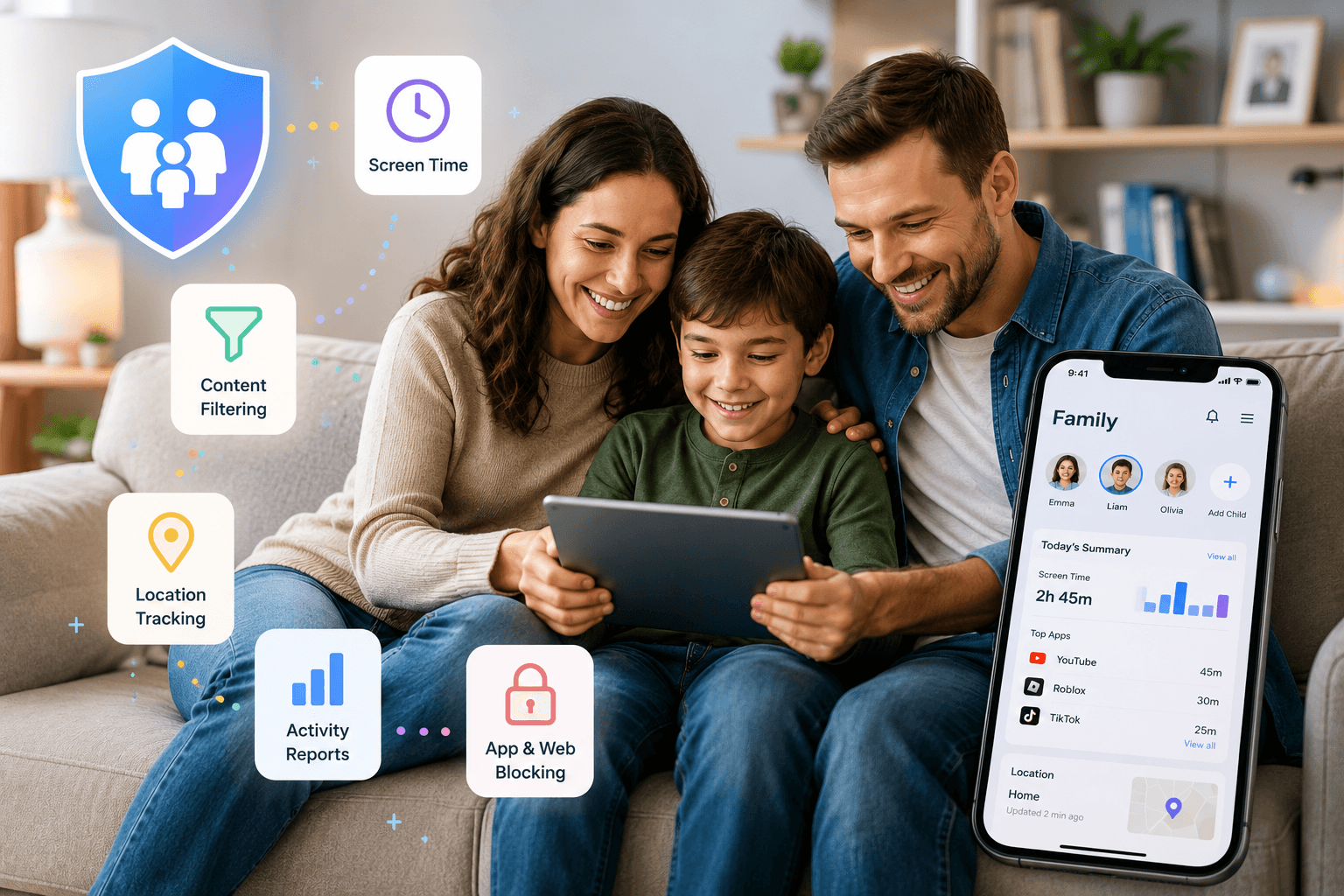
The UK just announced its “Australia-plus” approach to banning under-16s from social media. Canada is pushing the Safe Social Media Act with similar restrictions. Australia already implemented its ban. Whether or not these legislative bans actually work (spoiler: they’ll be technically difficult to enforce), they’ve put a spotlight on a question every parent with a tech-using child faces: how do I keep my kid reasonably safe online without becoming a digital helicopter parent?
I have two kids — 11 and 14. I’ve tried every major parental control solution on the market over the past three years. Some of them worked. Some of them turned my household into a cold war of VPN workarounds and deleted browser histories. One of them — I won’t name it yet — actually improved my relationship with my kids around technology because it facilitated conversations instead of just blocking access.
This guide is for parents who want sensible guardrails, not total surveillance. If you want to read every text message your teenager sends, this article isn’t for you — and I’d gently suggest that approach creates more problems than it solves.
On this page
The Parental Control Spectrum
Before comparing specific products, understand that parental controls exist on a spectrum:
- Level 1: Content filtering — Blocks inappropriate websites and explicit content. This is the baseline that every parent should have for kids under 13.
- Level 2: Screen time management — Sets daily limits, schedules downtime, and pauses internet access. Useful for establishing healthy habits.
- Level 3: App management — Controls which apps can be installed, when they can be used, and sets per-app time limits.
- Level 4: Location tracking and activity monitoring — Tracks your child’s physical location and monitors social media activity. This is where parental control becomes surveillance, and where you need to think carefully about trust and boundaries.
My recommendation: Levels 1-3 for kids under 13. Levels 1-2 with conversations for teenagers. Level 4 only in specific safety situations, not as a default.
The 6 Solutions I Tested
1. Apple Screen Time (Free, iOS/Mac)
Best for: All-Apple families who want basic controls with zero cost
If everyone in your family uses iPhones and iPads, Apple Screen Time is the obvious starting point. It’s built into iOS, it’s free, and it covers Levels 1-3 without installing anything. Content restrictions work well, app limits are enforceable, and Downtime scheduling is straightforward. The Family Sharing integration means you manage everything from your own iPhone.
The limitations are real, though. Screen Time is trivially bypassable by a determined teenager — there are YouTube tutorials with millions of views showing workarounds. The reporting is basic (you see time spent per app, not what they actually did). And if your kid has an Android phone or a Windows laptop, Screen Time covers none of those devices.
One Reddit parent summarized it perfectly:
“Screen Time stops my 8-year-old from watching YouTube at midnight. It does absolutely nothing to stop my 14-year-old from doing anything she wants. Different tools for different ages.” — u/mom_of_two_techkids
2. Google Family Link (Free, Android/ChromeOS)
Best for: All-Google/Android families
The Android equivalent of Apple Screen Time. It handles app approvals, screen time limits, content filtering via SafeSearch, and location tracking. The Chrome OS integration is a bonus — if your kid has a Chromebook for school (and in 2026, most do), Family Link extends controls to their laptop automatically.
The major drawback: Family Link becomes nearly useless when your child turns 13, because Google’s age policies let them opt out of most supervision. You can continue monitoring, but your teenager can remove themselves from Family Link entirely. This is a design choice by Google, not a bug — but it catches parents off guard.
3. Bark ($14/month)
Best for: Parents who want monitoring without micromanagement
Bark takes a fundamentally different approach. Instead of blocking everything and handing parents a control panel, Bark monitors content across 30+ apps and platforms and only alerts parents when it detects potential issues — cyberbullying, sexual content, suicidal ideation, online predators, drug references. You don’t see every message your kid sends. You get alerted when something concerning happens.
This philosophy resonated with me more than any other product. I don’t want to read my teenager’s conversations with her friends. I want to know if something dangerous is happening. Bark threads that needle better than anything else I tested.
The detection accuracy is genuinely impressive — it caught a cyberbullying situation in my daughter’s group chat that I wouldn’t have known about otherwise. It also produces occasional false positives (a conversation about a video game “kill streak” flagged as violence), but I’d rather have false positives than miss real issues.
Screen time management was added recently and works, but it’s not Bark’s strength. If time limits are your primary concern, other tools do it better.
4. Qustodio ($54.95/year for 5 devices)
Best for: Cross-platform families who want comprehensive control
Qustodio is the full-spectrum solution. It works on iOS, Android, Windows, Mac, Kindle, and Chromebook. It covers all four levels — content filtering, screen time, app management, and location tracking. The web dashboard is the best-designed of any parental control product, giving you a clear overview of each child’s activity across all their devices.
If you have a mixed-platform household (iPhone parent, Android kid, Windows laptop, Chromebook at school), Qustodio is the only solution that covers everything under one subscription. The $54.95/year price is reasonable for 5 devices.
The downside: it’s a lot. The dashboard presents so much information that it can trigger the exact helicopter-parent behavior I’m arguing against. Knowing that your kid spent 47 minutes on TikTok yesterday creates an urge to intervene that isn’t always healthy. Use the reporting features mindfully.
5. Bark + Router-Level Filtering (Bark $14/mo + any compatible router)
Best for: Tech-savvy parents who want network-wide protection
This is my current setup. Bark on the kids’ phones for content monitoring, combined with DNS-level filtering on our home router (I use NextDNS, which costs $20/year) to block inappropriate websites across every device on the network — including smart TVs, game consoles, and guest devices. Mesh WiFi systems like the ones in my mesh WiFi guide often include built-in parental controls that work at the router level.
This two-layer approach means the content filter works even on devices I don’t have parental control software installed on (like a friend’s iPad when they visit), and Bark catches concerning content patterns on the kids’ personal devices.
6. Circle Home Plus ($9.99/month + $129 hardware)
Best for: Families who want a single hardware solution for the whole house
Circle is a physical device that connects to your router and manages screen time and content filtering for every device on your network. Each family member gets a profile with custom rules. The implementation is elegant — no software to install on individual devices, no per-device configuration.
However, the subscription model ($9.99/month on top of the $129 hardware) makes it the most expensive option long-term. And like any router-level solution, it doesn’t work when your kid leaves the house and uses cellular data or a different WiFi network.
Comparison Table
| Solution | Price | Platforms | Best Age Range | Approach |
|---|---|---|---|---|
| Apple Screen Time | Free | iOS, Mac | Under 13 | Blocking + limits |
| Google Family Link | Free | Android, ChromeOS | Under 13 | Blocking + limits |
| Bark | $14/mo | iOS, Android, desktop | 10-17 | Monitoring + alerts |
| Qustodio | $55/yr | All platforms | Under 16 | Full spectrum |
| Bark + Router DNS | $14/mo + $20/yr | Everything | All ages | Layered |
| Circle Home Plus | $10/mo + $129 | All networked | Under 16 | Hardware-based |
The Conversation Matters More Than the Software
I need to say this directly: no parental control software replaces the conversation. The best digital safety tool is a kid who tells you when something weird happens online because they trust you won’t overreact. Every child psychologist and digital safety researcher I’ve read agrees on this point.
Use parental controls as safety nets, not as substitutes for parenting. A 10-year-old needs content filtering because they shouldn’t encounter explicit content by accident. A 15-year-old needs trust and communication because they will find ways around any filter you install, and the question is whether they come to you when something goes wrong.
FAQ
Can my teenager bypass parental controls?
Yes. Any determined teenager with internet access can find workarounds for any parental control software. VPNs, alternative browsers, borrowed devices, secondary accounts — the methods are well-documented and shared freely online. This is why monitoring (Bark’s approach) works better for teens than blocking (Screen Time’s approach) — monitoring works even when the kid thinks they’re circumventing controls.
No. Legislative bans face enormous technical challenges in age verification. Even if platforms implement age checks, determined teens will use VPNs or false credentials. Parental controls remain your primary line of defense regardless of legislation.
What about gaming console parental controls?
Both PlayStation and Xbox/Microsoft have built-in parental controls for console gaming that work well. Nintendo Switch has excellent parental controls via a separate app. For PC gaming, Qustodio or router-level controls are your best bet. Our gaming headset guide touches on gaming communication safety considerations.
Ethan Caldwell writes for WU120 — practical tech advice from someone who lives with the same problems you do.