Two years ago, I was paying $30/month for 2TB across Google One, iCloud, and Dropbox. That’s $360/year for storage I don’t own, on servers I don’t control, governed by terms of service that can change whenever the company decides they need to make earnings look better. When Google Photos started nudging me toward their AI features that require scanning my personal photos, I started thinking about alternatives.
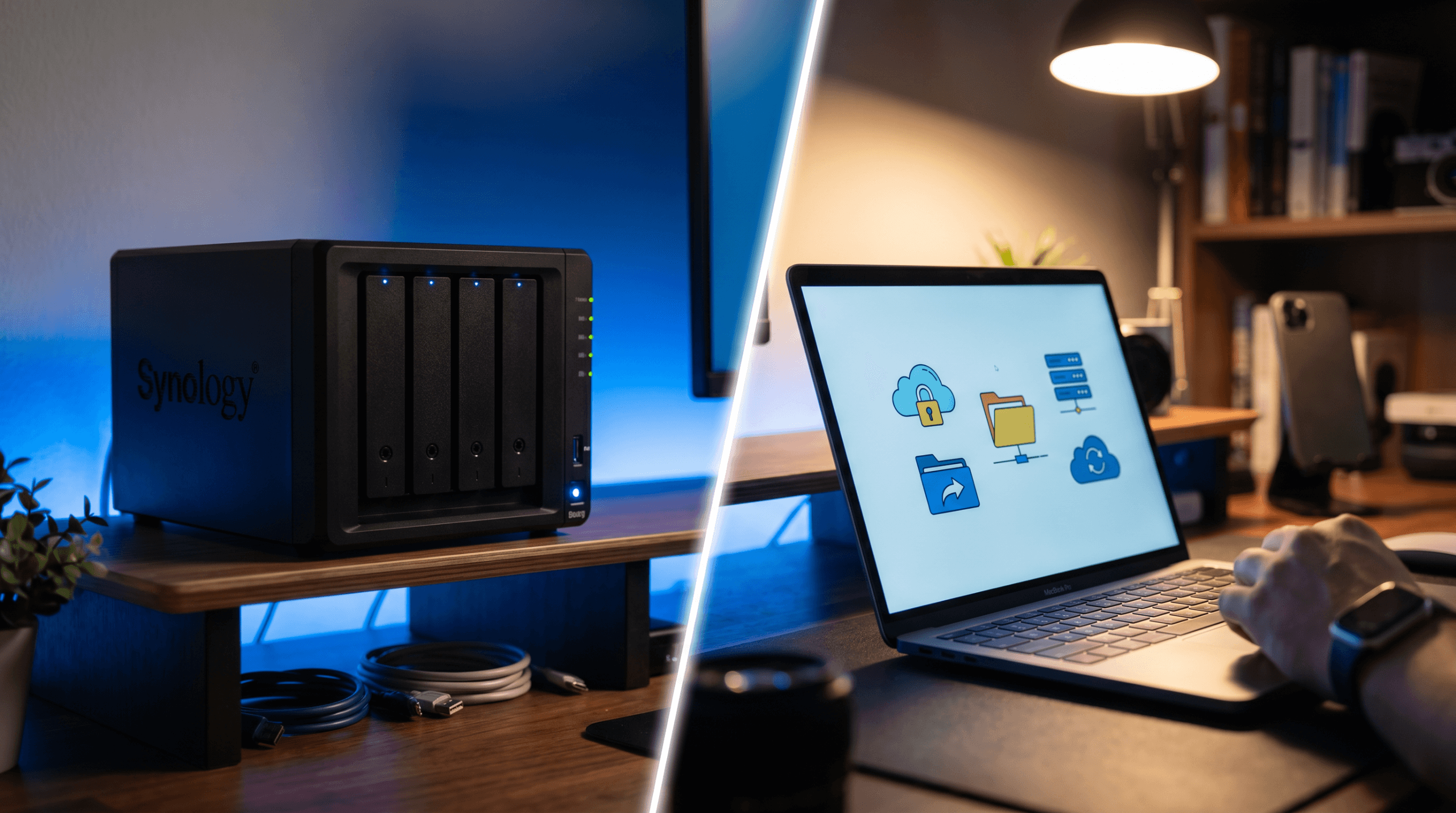
So I bought a Synology DS224+ NAS, filled it with two 4TB drives in RAID 1 (mirrored), and ran it alongside my cloud subscriptions for a full year. I wanted to know, honestly, whether a NAS saves money, whether it’s worth the maintenance overhead, and whether the privacy benefits are real or just enthusiast cope. Our mini PC home server guide explores a related approach — using a mini PC to replace cloud services entirely.
On this page
The Cost Comparison Nobody Does Honestly
Most NAS-vs-cloud comparisons cherry-pick the math. NAS advocates calculate the “break-even point” by dividing hardware cost by monthly cloud subscription and declaring victory at month 18. Cloud advocates point out that NAS hardware fails, electricity costs money, and your time has value. Both are right, and both are incomplete. Here’s the full picture:
| Cost Factor | NAS (4TB usable, RAID 1) | Cloud (2TB Google One + 200GB iCloud) |
|---|---|---|
| Year 1 hardware | $300 (DS224+) + $180 (2x 4TB drives) = $480 | $0 |
| Annual subscription | $0 | $360/year ($30/mo Google) + $36/year ($3/mo iCloud) = $396 |
| Electricity | ~$25/year (15W avg, $0.12/kWh) | $0 |
| UPS battery backup | $80 (one-time) | $0 |
| Drive replacement (estimated) | $90 every 4-5 years (one drive) | $0 |
| Year 1 total | $585 | $396 |
| Year 2 total | $25 | $396 |
| Year 3 total | $25 | $396 |
| 3-year total | $635 | $1,188 |
| 5-year total | $725 | $1,980 |
The NAS breaks even at month 16. By year 3, you’ve saved $553. By year 5, you’ve saved $1,255. And that’s with 4TB of usable NAS storage versus 2.2TB of cloud storage — you’re getting more storage for less money.
The math gets even more favorable if you need more storage. Scaling from 2TB to 8TB on Google One costs $100/month ($1,200/year). Scaling a NAS from 4TB to 8TB costs $180 for two new drives — a one-time purchase.
The math gets less favorable if your time is expensive and you hate system administration. A NAS requires initial setup (2-4 hours), occasional updates (15 minutes/month), and troubleshooting when things go wrong (variable — could be zero hours per year, could be a full weekend if a drive fails). Cloud storage requires zero maintenance. If you value your time at $50/hour and the NAS demands 10 hours/year of attention, add $500 to the NAS column. The savings still favor NAS over 5 years, but it’s closer.
What a NAS Actually Does Better
Speed
Transferring files to a NAS on your local network is fast. My DS224+ sustains 110 MB/s over Gigabit Ethernet — I can move a 50GB video project in 8 minutes. Uploading that same file to Google Drive over my 50 Mbps upload connection takes about 2.5 hours. If you work with large files — video, photography, design assets, VM images — the speed difference is transformative. It changes how you think about backup because it’s fast enough to do without planning around it.
Privacy
Your NAS files live on hardware in your house, on your network. No third party scans them for advertising data, trains AI models on them, or changes the terms under which they’re stored. When Google announced that Gemini features in Google Photos would analyze image contents, I had already moved my photos to the NAS. When Dropbox updated their ToS to include AI training language (later walked back after backlash), my documents were already local.
This isn’t paranoia. These companies have explicitly stated their intention to use stored data for AI features. If your files include client work, medical records, financial documents, or anything sensitive, a NAS removes the third party from the equation entirely.
Control and Longevity
Cloud services shut down, change pricing, and alter features at the provider’s discretion. Google has killed 293 products and services (per killedbygoogle.com). Synology has been making NAS devices since 2000 and still supports hardware from a decade ago with software updates. Your NAS works even if the internet goes down, the company changes ownership, or the service raises prices. The data is yours in a way that cloud-stored data simply isn’t.
What Cloud Storage Actually Does Better
Offsite Protection
If your house floods, burns down, or gets robbed, your NAS goes with it. Cloud storage exists in redundant data centers across multiple geographic locations. This is the strongest argument for cloud, and it’s essentially unanswerable by NAS alone. The correct solution is both: NAS for primary storage plus a cloud backup (like Backblaze B2 at $0.005/GB/month — about $20/year for 4TB) for disaster recovery.
Collaboration
Sharing a Google Docs link for real-time collaboration is seamless. Sharing a file from your NAS with someone outside your network requires either Synology’s QuickConnect (works but slower), a VPN, or Tailscale. None of these are as simple as “right-click, copy share link.” If your workflow involves sharing files with other people frequently, cloud collaboration tools are still better.
Mobile Access
Google Photos’ app is excellent. Synology Photos’ app is… functional. It does the job, but it’s slower, the search is less intelligent (no AI-powered image recognition, which is both a privacy win and a functionality loss), and the sync is less reliable. For people who primarily access files from their phone, the cloud experience is still smoother.
Zero Maintenance
Over the past year, my NAS required: one firmware update that needed manual intervention (20 minutes), one drive health warning that turned out to be a false positive (1 hour of research and anxiety), and one power outage recovery (15 minutes). Total maintenance time: about 2 hours. That’s light by NAS standards — a drive failure would have cost significantly more time. Cloud storage required zero hours of maintenance.
My Setup After One Year
I didn’t go full NAS or full cloud. I landed on a hybrid approach:
- NAS (primary): All photos, documents, project files, media library, Time Machine backups. 3.2TB of my 4TB used.
- Backblaze B2 (disaster backup): Synology Hyper Backup runs nightly to Backblaze. $16/year for 3.2TB. If my house burns down, everything is recoverable.
- iCloud 50GB ($1/month): Kept for iPhone photo sync only. Photos sync to iCloud, then download to NAS nightly via Synology’s Cloud Sync. I can access recent photos on my phone without connecting to the NAS.
- Dropped entirely: Google One 2TB ($30/month), Dropbox Plus ($12/month). Combined savings: $504/year.
Total annual cost: $25 (electricity) + $19.20 (Backblaze) + $12 (iCloud 50GB) = $56.20/year versus the previous $504/year. For more storage, more privacy, and more control. The initial hardware cost ($560 including UPS) paid for itself in 13 months.
Who Should Buy a NAS
A NAS makes sense if:
- You’re spending $20+/month on cloud storage subscriptions
- You work with large files (video, photography, design) and need fast local access
- You care about data privacy and don’t want third parties scanning your files
- You’re comfortable with basic system administration or willing to learn
- You have a reliable home network and consistent power (or a UPS)
Stick with cloud if:
- You need less than 200GB of storage (the free/cheap tiers are fine)
- Real-time collaboration with others is core to your workflow
- You primarily access files from your phone and want the smoothest mobile experience
- You don’t want to maintain any hardware at all
- You travel frequently and need reliable access from anywhere without VPN setup
If you’re interested in going even further — replacing not just cloud storage but cloud services like Plex, password managers, and home automation — our guide to replacing cloud subscriptions with a mini PC is the next step.
FAQ
What NAS should I buy as a beginner?
The Synology DS224+ (2-bay) is the most recommended entry-level NAS for a reason: the software (DSM) is intuitive, the community is massive, and there are tutorials for every use case. Budget $300 for the unit plus $90-180 for drives depending on capacity. QNAP is the main alternative — comparable hardware, slightly less polished software.
What happens if a NAS drive fails?
If you’re using RAID 1 (mirroring), one drive can fail completely and your data is still intact on the other drive. You replace the failed drive, the NAS rebuilds the mirror automatically, and you’re back to redundant storage. If both drives fail simultaneously — extremely rare — you need your offsite backup (which is why Backblaze B2 or similar is essential). If you’re using a single drive with no RAID, a failure means data loss. Always use RAID or a backup.
Can I access my NAS remotely?
Yes. Synology’s QuickConnect provides access without port forwarding (slower, routes through Synology’s relay). For faster remote access, set up Tailscale (free for personal use) — it creates a secure VPN connection to your home network in about 10 minutes. I use Tailscale and access my NAS from anywhere at near-local speeds when on good internet.
Is 4TB enough storage?
For documents, photos, and general files: 4TB is overkill for most people. I have 15 years of photos, thousands of documents, and a modest music library, and I’m using 3.2TB. For video — especially 4K raw footage — 4TB fills up fast. Videographers and photographers shooting RAW should start with 8TB or go for a 4-bay NAS that can scale to 40TB+. Our external SSD guide covers portable storage for when you need speed on the go.
Ethan Caldwell’s NAS has been running for 387 days without a reboot. He considers this a personal achievement and will be devastated when it finally needs one. More at WU120 Best Picks.