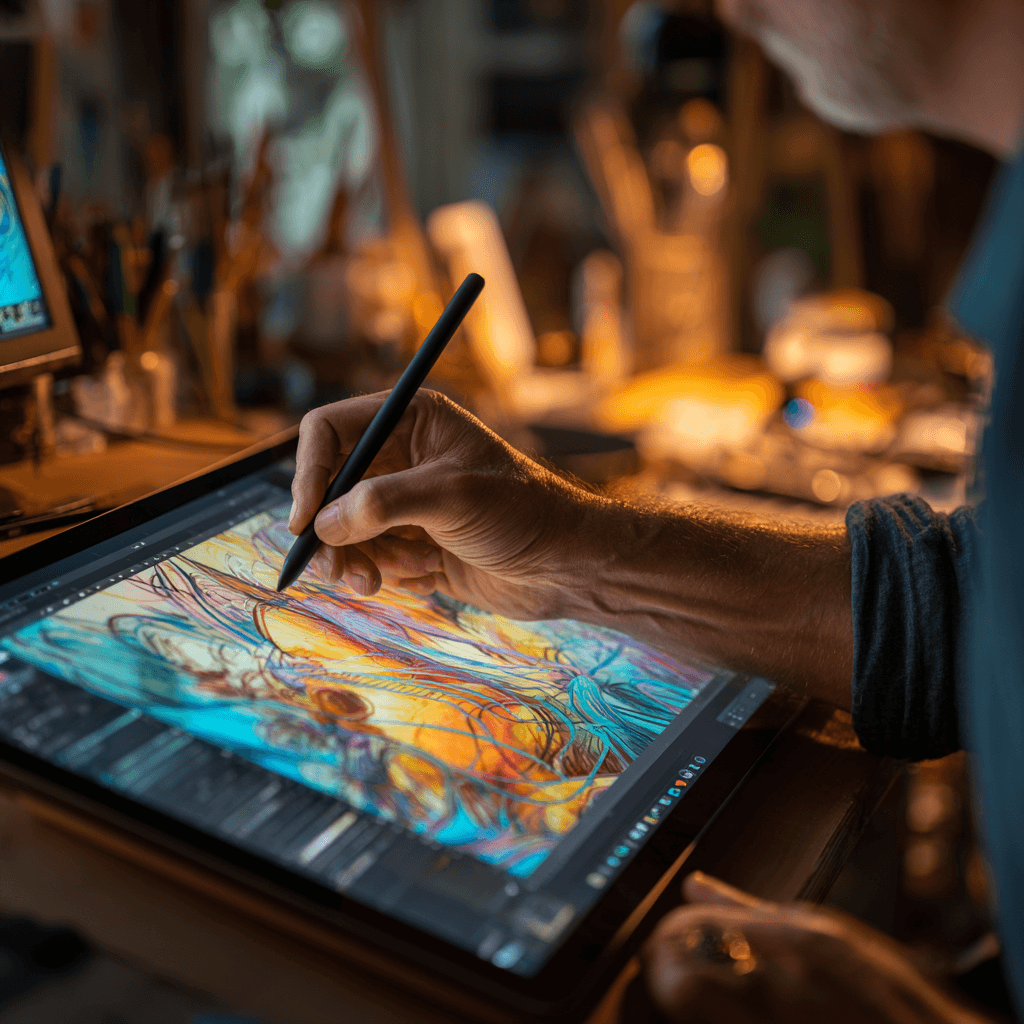
I started drawing on an iPad in 2020 as a “casual hobby.” Four years later, I’ve completed three freelance illustration projects, designed a logo for a friend’s startup, and built a small print-on-demand shop — all from a tablet I originally bought to watch Netflix in bed. The barriers between “person who doodles” and “person who makes art” have never been lower, and the tablet you choose determines your ceiling.
This guide is specifically for people who want to create visual art — illustration, character design, concept art, graphic design, comics, and digital painting. If you’re looking for a general-purpose student tablet, I covered that in the college tech setup guide. This is for the artists.
On this page
- Quick Verdict: 5 Best Tablets for Digital Art
- iPad Pro 13″ M4 (~$1,299) — The Industry Standard
- Samsung Galaxy Tab S10 Ultra (~$1,199) — The Clip Studio Champion
- iPad Air 11″ M3 (~$599) — Sweet Spot for Serious Hobbyists
- Drawing Software: The Real Deciding Factor
- Stylus Comparison: What Actually Matters
- FAQ
Quick Verdict: 5 Best Tablets for Digital Art
| Rank | Tablet | Price | Best For | Rating |
|---|---|---|---|---|
| 1 | iPad Pro 13″ M4 | ~$1,299 | Professional illustration (Procreate) | 9.5/10 |
| 2 | Samsung Galaxy Tab S10 Ultra | ~$1,199 | Clip Studio Paint, Android workflows | 9.0/10 |
| 3 | iPad Air 11″ M3 | ~$599 | Best value for serious artists | 8.8/10 |
| 4 | Wacom Movink 13 | ~$749 | Professionals with existing desktop setup | 8.5/10 |
| 5 | XP-Pen Magic Drawing Pad | ~$499 | Budget standalone drawing tablet | 7.9/10 |
iPad Pro 13″ M4 (~$1,299) — The Industry Standard
“I’ve used Wacom Cintiqs, Surface Pros, and Samsung tablets. Nothing matches the Apple Pencil Pro + Procreate combination for natural drawing feel. It’s not close.” — r/DigitalArt
The iPad Pro with Procreate is the combination that has conquered the illustration world. The Apple Pencil Pro’s hover detection, pressure sensitivity (reportedly 4,096 levels via firmware), and imperceptible latency make it feel closer to pen-on-paper than any other digital tool. The 13-inch OLED display with ProMotion (120Hz) shows your strokes appearing in real-time with colors that are reference-accurate. When you zoom into detail work, the display resolution means you see every single pixel clearly.
The M4 chip handles 100+ layer Procreate canvases at 4K resolution without stuttering. I’ve stress-tested it with a 8000×8000 pixel canvas at 78 layers — smooth as butter. Professional illustrators who used to need a $2,500 Wacom Cintiq + desktop computer setup can now carry their entire studio in a bag that weighs 1.28 pounds.
The honest downside: Procreate is $12.99 one-time purchase — incredible value. But if you need Adobe Photoshop or Illustrator, you’re paying Creative Cloud subscription ($55/month). And iPadOS still limits file management and multitasking in ways that frustrate professional workflows. You can’t have a reference image from Safari, Procreate, and a file manager all visible simultaneously without compromises.
Samsung Galaxy Tab S10 Ultra (~$1,199) — The Clip Studio Champion
“For manga and comics, nothing beats Clip Studio Paint on the Tab S10 Ultra. Full desktop version, 14.6 inch screen, S Pen included. It replaced my Cintiq.” — r/ClipStudio
If your workflow centers on Clip Studio Paint — and for manga artists, comic creators, and many concept artists, it does — the Samsung Tab S10 Ultra is arguably better than the iPad Pro. Why? Because Clip Studio on Android is the full desktop version, not a stripped-down mobile port. You get every feature, every brush engine option, and full plugin support. The iPad version of Clip Studio is excellent but has subtle limitations the Android version doesn’t.
The 14.6-inch display is enormous for a tablet — nearly the size of a laptop screen. For detailed work, especially full comic pages with multiple panels, that extra screen real estate is transformative. The S Pen is included (saving $129 vs Apple Pencil) and has excellent pressure sensitivity and tilt recognition.
The honest downside: The S Pen’s palm rejection isn’t quite as foolproof as Apple Pencil. I get 1-2 phantom marks per hour of drawing that I have to undo. The drawing latency is perceptible compared to iPad — maybe 5-8ms more. Most artists won’t notice, but if you’re switching directly from an iPad Pro, the first week feels slightly sluggish.
iPad Air 11″ M3 (~$599) — Sweet Spot for Serious Hobbyists
The iPad Air with Apple Pencil Pro gives you 90% of the iPad Pro drawing experience for 55% of the price. The M3 chip handles Procreate without breaking a sweat — you’ll hit canvas size limits long before you hit performance limits. The 11-inch screen is adequate for illustration work, though you’ll find yourself pinch-zooming more frequently than on a 13-inch display.
Where the Air differs from Pro: LCD instead of OLED (colors slightly less vibrant, no true blacks), slightly higher Apple Pencil latency (unnoticeable to most people), and the 11-inch form factor. For artists earning income from their work, the Pro’s 13-inch OLED is worth the premium. For serious hobbyists and art students, the Air delivers an outstanding experience at a manageable price.
The honest downside: At 11 inches, your drawing surface is about the size of a small notepad. Detailed work requires constant zooming. If you can stretch the budget, the 13-inch Air ($799) solves this completely and is the version I’d recommend for most artists.
Drawing Software: The Real Deciding Factor
Your choice of tablet is actually a choice of software ecosystem:
- Procreate (iPad only) — $12.99, best for illustration, painting, character design. Intuitive, fast, beautifully designed. No subscription.
- Clip Studio Paint (All platforms) — $4.49/month or $49.99 one-time (version 2.x). Best for comics, manga, animation. Professional-grade with a steep learning curve.
- Adobe Fresco/Photoshop (iPad, some Android) — $9.99-54.99/month. Best for photo manipulation and artists already in the Adobe ecosystem. Powerful but subscription-heavy.
- Krita (Android) — Free. Surprisingly capable open-source option. Good for learning without financial commitment.
- ibisPaint (iPad, Android) — Free with ads, $9.99 to remove. The TikTok generation’s drawing app. Good for beginners, limited for professionals.
If you want Procreate, you need an iPad. If you want full Clip Studio Paint, Samsung gives you the best experience. If you want maximum flexibility with Krita or open-source tools, Android tablets win.
Stylus Comparison: What Actually Matters
| Stylus | Pressure Levels | Tilt | Hover | Latency | Price |
|---|---|---|---|---|---|
| Apple Pencil Pro | ~4,096* | Yes | Yes | ~7ms | $129 |
| Samsung S Pen (included) | 4,096 | Yes | Yes | ~12ms | $0 |
| Wacom Pro Pen 3 | 8,192 | Yes | Yes | ~8ms | Included |
| XP-Pen X3 Pro | 16,384 | Yes | Yes | ~14ms | Included |
*Apple doesn’t officially disclose pressure levels; 4,096 is the widely accepted estimate based on testing.
Here’s the secret the spec sheets won’t tell you: above 2,048 pressure levels, the human hand cannot consistently distinguish different pressure values. The jump from 256 to 2,048 levels is massive. The jump from 2,048 to 8,192 is theoretical. Buy based on feel and latency, not pressure level numbers.
FAQ
Can I do professional illustration work on an iPad?
Absolutely. Major publishers, game studios, and animation houses have artists working primarily on iPad Pro. The tool doesn’t limit the art — technique and practice do. Procreate is used professionally across the industry. That said, for final production work (CMYK color separation, complex compositing, print-ready file prep), you’ll likely still need a desktop at some point.
Is a Wacom tablet still worth buying in 2026?
For artists with an existing powerful desktop/laptop setup, yes. The Wacom Movink and Cintiq lineup offer the best pen feel in the industry and integrate with full desktop applications (Photoshop, Clip Studio, Blender). But for portability and standalone use, standalone tablets (iPad, Samsung) have surpassed Wacom’s pen displays in overall value.
Screen protector: matte or glossy for drawing?
Matte (paper-like). A matte screen protector adds friction that mimics paper under the stylus tip. Drawing on glass feels slippery and uncontrolled for most traditional artists transitioning to digital. Brands: Paperlike (overpriced but good), Benks (identical quality, half the price), or any “paper feel” protector with good reviews. Yes, it slightly reduces display clarity — worth the trade-off for drawing feel.
How much storage do I need for digital art?
256GB minimum. A single Procreate file with 50+ layers at 4K can exceed 1GB. You’ll accumulate hundreds of these plus reference images, brushes, and fonts. 512GB is the comfortable sweet spot if you can afford it. Use cloud backup (iCloud, Google Drive) aggressively — losing artwork to a full drive or accidental deletion is devastating.