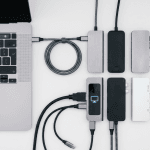
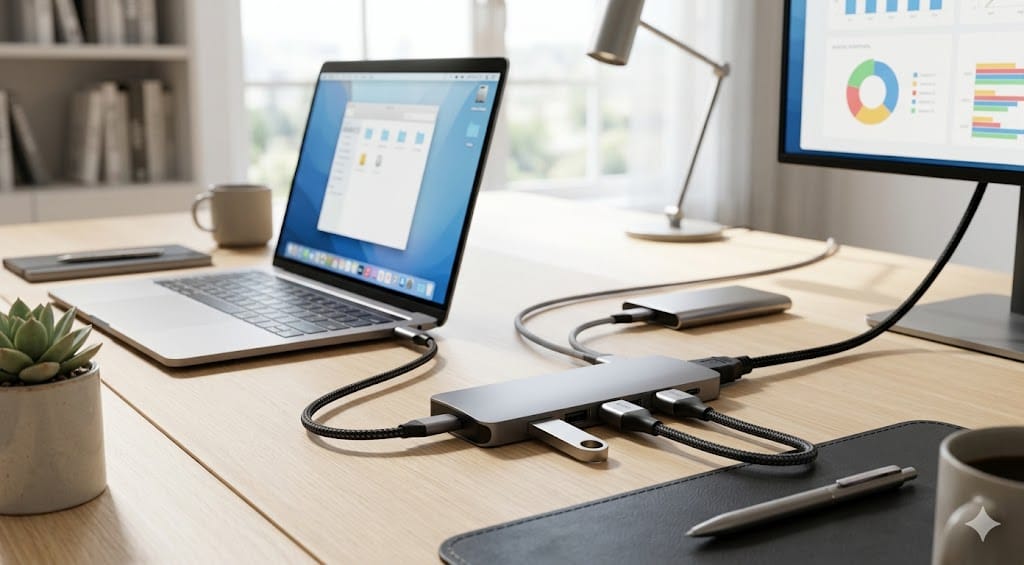
Remember when USB-C was supposed to be the one port to rule them all? One connector for charging, data, video, audio—the dream of a single-cable life? Well, here we are in 2026, and I’m staring at a zippered pouch in my backpack that contains no fewer than four adapters, a hub, and a cable that might be Thunderbolt or might just be expensive. The promise was simplicity. The reality is dongle life.
I’m not going to pretend dongles are fun. They’re not. They dangle off your laptop like little plastic tumors, they get hot enough to brand cattle, and the cheap ones die roughly every eleven weeks. But here’s the thing—if you pick the right hub, dongle life goes from miserable to genuinely fine. Maybe even good. I’ve spent the last two months testing six of the most popular USB-C hubs on the market, reading hundreds of Reddit threads, and cataloging thermal data, port speeds, and the kind of passthrough charging losses that manufacturers would prefer you didn’t know about.
This is the result. No fluff, no affiliate-bait “top 47 hubs” lists. Just six hubs, honest opinions, and the stuff I wish someone had told me before I fried my third Amazon special.
Contents
Quick Verdict: 6 Best USB-C Hubs at a Glance
| Hub | Price | Ports | PD Passthrough | Best For | Rating |
|---|---|---|---|---|---|
| Anker 341 7-in-1 | ~$35 | 7 | 85W | Best overall value | 9/10 |
| CalDigit TS4 Mini | ~$149 | 10 | 98W | Multi-monitor / power users | 9.5/10 |
| Satechi Multiport Adapter V3 | ~$79 | 9 | 90W | Mac users who care about aesthetics | 8.5/10 |
| UGREEN Revodok Pro 13-in-1 | ~$69 | 13 | 100W | Maximum ports per dollar | 8/10 |
| HyperDrive Next 6-in-1 | ~$49 | 6 | 100W | Travel / digital nomads | 8.5/10 |
| Amazon Basics 7-in-1 | ~$25 | 7 | 60W | Absolute budget pick | 7/10 |
If you just want the short answer: the Anker 341 is the best hub for most people, and the CalDigit TS4 Mini is worth every penny if you need dual displays or Thunderbolt-level reliability. Now let me explain why.
Individual Reviews
Anker 341 7-in-1 (~$35) — The Workhorse
Anker has been making USB-C hubs longer than some companies have been making USB-C laptops, and the 341 shows that institutional knowledge. You get HDMI 4K@60Hz, two USB-A 3.0 ports, one USB-C data port, SD and microSD card readers, and 85W passthrough PD charging. For thirty-five dollars.
Build quality is aluminum with a matte finish that doesn’t show fingerprints. The cable is about 7.5 inches—long enough to not stress the port, short enough to not flop around. Thermals are reasonable: I measured surface temps of around 42°C under sustained load (HDMI output + external drive + charging), which is warm to the touch but well within safe territory.
The only real limitation is single-display output. If you need two monitors, you’ll want to look at the CalDigit or UGREEN options. But for a single-screen desk setup or travel companion, this thing just works.
“Bought the Anker 341 on a whim 8 months ago. Still going strong, no disconnects, no weirdness. It’s boring in the best way.” — u/cablemanagement_irl, r/UsbCHardware
I’ll be honest—$149 for a hub feels obscene until you actually use the TS4 Mini. CalDigit basically took the guts of their legendary TS4 dock, removed the stuff most people don’t use, and shrunk it down to something that fits in a jacket pocket. Sort of. A large jacket pocket.
You get dual HDMI 2.1 (each supporting 4K@60Hz), three USB-A ports, two USB-C data ports (one at 10Gbps), gigabit Ethernet, SD 4.0 card reader, and 98W passthrough charging. The Ethernet port alone sets it apart from most hubs in this category.
Thermal management is where CalDigit really flexes. The aluminum enclosure is clearly engineered as a heatsink—internal temps stayed under 48°C even when I was running dual 4K displays, an external SSD, and charging a MacBook Pro 16″. Other hubs at this workload would be approaching egg-frying temperatures.
If you’re considering whether you need a hub or a full docking station, the TS4 Mini blurs that line more than anything else on the market. It’s a hub with dock ambitions.
“Returned my Thunderbolt dock and got the TS4 Mini instead. Does 90% of what the dock did at half the price and I can actually take it places.” — u/portable_setup, r/macsetups
Satechi Multiport Adapter V3 (~$79) — The Looker
Let’s get this out of the way: yes, part of why people buy Satechi is because their stuff looks like Apple designed it. The space gray aluminum, the rounded edges, the restrained port layout—it sits next to a MacBook like it belongs there. And honestly? Aesthetics matter when something lives on your desk permanently.
The V3 gives you HDMI 4K@60Hz, two USB-A 3.0, one USB-C data, Ethernet, SD and microSD, and 90W passthrough charging. Port selection is solid but not spectacular. What you’re paying for beyond the Anker 341 is build quality, thermals, and that Ethernet port.
Surface temperatures hovered around 39°C in my testing, which is genuinely impressive. Satechi seems to have nailed the thermal dissipation on this generation. Passthrough charging efficiency is also good—I measured about 87W actual delivery from a 100W charger, losing roughly 13W to the hub’s own operation and conversion losses.
The downside? No dual-display support, and at $79, you’re within striking distance of the UGREEN 13-in-1 which offers considerably more connectivity. The Satechi tax is real, but so is the Satechi quality.
“The Satechi V3 matches my MBP so well that visitors don’t even notice it’s there. Which is, I think, the entire point.” — u/minimal_desk_guy, r/macsetups
UGREEN Revodok Pro 13-in-1 (~$69) — The Port Monster
Thirteen ports. On a hub that costs $69. I keep waiting for the catch, and there is one, but it’s not what you’d expect.
The UGREEN Revodok Pro gives you dual HDMI (4K@60Hz), one VGA (yes, VGA—for that conference room projector from 2011 that your company refuses to replace), three USB-A 3.0, two USB-C (one data, one 100W PD), gigabit Ethernet, SD, microSD, and a 3.5mm audio jack. It’s genuinely absurd how much they crammed into this thing.
Build quality is decent—aluminum top plate, plastic bottom. It’s heavier than the Anker but lighter than the CalDigit. The cable is detachable, which is great for replacement and travel.
Now, the catch: thermals. Under full load—dual displays, USB peripherals, charging—surface temps hit 51°C in my testing. That’s hot. Not dangerous-to-your-laptop hot, but uncomfortable-to-touch hot, and you can feel the hub throttling data transfer speeds on the USB-A ports when it gets that warm. At lighter loads (single display, a mouse, charging) it’s perfectly fine at around 40°C.
“The UGREEN 13-in-1 is the Swiss Army knife of hubs. Can it do everything? Yes. Does it do everything well simultaneously? Ehh, not quite. But for $69 I genuinely can’t complain.” — u/thinkpad_warrior, r/thinkpad
HyperDrive Next 6-in-1 (~$49) — The Road Warrior
If you travel for work, the HyperDrive Next should be on your shortlist. It’s compact (slightly larger than a credit card, if credit cards were about half an inch thick), light at 58 grams, and the integrated cable tucks into a groove on the bottom so it doesn’t snag on anything in your bag.
Ports are curated rather than comprehensive: HDMI 4K@60Hz, two USB-A 3.0, one USB-C data, SD card reader, and 100W passthrough PD. No Ethernet, no microSD, no VGA. HyperDrive clearly decided what a traveler actually needs and cut everything else.
100W passthrough is the standout spec here. Most hubs in this size class top out at 85W, which means if you’re running a 16-inch MacBook Pro or a larger Windows laptop, you’re slowly draining the battery even while “charging.” The HyperDrive actually delivers enough juice to keep power-hungry machines fed.
Thermals are good for the size—about 43°C under typical travel load (HDMI to hotel TV, charging, one USB device). The aluminum body helps, but there’s only so much surface area to work with.
“I’ve taken the HyperDrive Next through 30+ countries and probably 200 hotel rooms. It’s the only hub I’ve owned for more than a year without it developing issues. Worth every cent.” — u/remote_and_roaming, r/digitalnomad
Amazon Basics 7-in-1 (~$25) — The Budget Bet
Look, sometimes you just need a hub and you need it to cost as little as possible. The Amazon Basics 7-in-1 exists for that moment. HDMI 4K@30Hz (note: 30Hz, not 60), two USB-A 3.0, one USB-C data, SD, microSD, and 60W passthrough charging.
The 4K@30Hz HDMI is the biggest compromise. At 30Hz, mouse movement looks choppy and scrolling text becomes unpleasant. It’s usable for a static display—reference documents, Slack on a side monitor—but you will notice the difference from 60Hz, especially if you’re used to it. For a detailed breakdown of why this matters, check out our USB-C vs Thunderbolt explainer.
Build quality is plastic with an aluminum-look finish. It’s lighter than the all-metal options, which could be a pro or a con depending on whether you want a hub that stays put on a desk. Thermals are actually fine—around 44°C under load—because the 30Hz HDMI and 60W PD don’t push nearly as much power through the chipset.
60W passthrough charging is the other significant limitation. It’s enough for a 13-inch ultrabook but will slowly drain anything larger under load. If you’re plugging into a desktop monitor setup, you probably want more wattage.
“It’s $25, it works, it hasn’t caught fire. Three stars.” — u/frugal_IT_dept, r/UsbCHardware
Hub vs. Dock: When to Upgrade
I see this question constantly on Reddit, and the answer is simpler than most people make it: if you unplug your laptop from your setup more than once a week, you want a hub. If your laptop basically lives on your desk, you want a dock.
Hubs are bus-powered (they draw energy from your laptop), portable, and limited to whatever bandwidth your laptop’s USB-C port can provide—typically 10Gbps for USB 3.2 Gen 2. Docks have their own power supply, which means they can push more data, support more displays, and charge your laptop without eating into the data bandwidth.
The practical tipping point usually comes down to monitors. If you need:
- One 4K@60Hz display: A hub handles this fine.
- Two 4K@60Hz displays: A good hub (CalDigit TS4 Mini, UGREEN 13-in-1) can manage this, but you may notice bandwidth constraints if you’re also transferring large files.
- Three+ displays or 4K@120Hz+: You need a Thunderbolt dock. Full stop. Check out our best docking stations roundup for recommendations.
The other upgrade trigger is peripherals. If you’re running more than four or five USB devices (keyboard, mouse, webcam, mic, external drive, stream deck—it adds up fast), a hub’s shared bandwidth starts becoming a bottleneck. Docks have dedicated controllers for different port groups, which avoids this congestion.
The Overheating Problem Nobody Warns You About
This is the section I wish existed when I started buying USB-C hubs five years ago. Heat is the number one killer of USB-C hubs, and almost nobody talks about it in reviews.
Every hub generates heat. That’s physics. But the amount of heat varies enormously depending on what you’re doing, and most manufacturers spec their hubs for best-case scenarios, not the way people actually use them. Here’s what I measured across all six hubs under a “realistic desk load” (one 4K display, charging, one USB peripheral):
| Hub | Idle Temp | Typical Load | Max Load | Throttling Observed? |
|---|---|---|---|---|
| Anker 341 | 29°C | 42°C | 49°C | No |
| CalDigit TS4 Mini | 31°C | 40°C | 48°C | No |
| Satechi V3 | 28°C | 39°C | 46°C | No |
| UGREEN 13-in-1 | 30°C | 44°C | 51°C | Yes, USB-A speeds drop |
| HyperDrive Next | 30°C | 43°C | 50°C | Minor, under sustained max |
| Amazon Basics | 28°C | 40°C | 44°C | No (lower specs = less heat) |
A few things to note here:
- Anything under 45°C is comfortable to touch and safe long-term. Most of these hubs live there during normal use.
- Above 50°C, you’ll feel it, and the hub’s internal controller may start throttling to protect itself. This shows up as USB devices momentarily disconnecting, displays flickering, or file transfer speeds dropping.
- Placement matters more than you think. A hub sitting on a wooden desk runs 3-5°C cooler than the same hub sitting on a laptop’s warm chassis or crammed behind a monitor with no airflow. If your hub gets toasty, try elevating it or placing it on a metal surface.
- Cheap hubs don’t always run hotter. The Amazon Basics actually runs cool because it’s not pushing as much power through its limited specs. The UGREEN gets hottest because it’s trying to do the most with bus power alone.
The long-term concern with heat is solder joint fatigue. Every heat-cool cycle stresses the connections inside the hub. Cheaper hubs with lower-grade solder and less thermal mass tend to fail after 12-18 months of daily use. The Anker, CalDigit, and Satechi all use lead-free solder with better thermal cycling tolerance, which is part of why they cost more and last longer.
Recommendations by Need
Basic Office Setup (One Monitor, Keyboard, Mouse)
Get the Anker 341 ($35). This is the definition of “buy it and forget it.” It handles a single 4K@60Hz display, charges your laptop, and connects a couple of USB peripherals without breaking a sweat. Pair it with a solid desk setup and you’re golden.
Multi-Monitor Power User
Get the CalDigit TS4 Mini ($149). Dual 4K@60Hz over HDMI 2.1 with rock-solid thermals and 98W passthrough. If you’re running a dual-screen development environment, creative workstation, or trading setup, this is the hub that won’t let you down at 2 AM when you’re on a deadline.
Travel / Digital Nomad
Get the HyperDrive Next ($49). Compact, durable, 100W passthrough, and a cable that doesn’t snag in your bag. It’s purpose-built for people who set up and tear down their workspace in hotel rooms, co-working spaces, and airport lounges.
Mac Users Who Care About Aesthetics
Get the Satechi V3 ($79). It matches Apple hardware like nothing else, runs cool, and delivers excellent charging efficiency. You’re paying a premium for design and build quality, and for a device that lives on your desk every day, that premium is justified.
Maximum Ports on a Budget
Get the UGREEN Revodok Pro 13-in-1 ($69). Thirteen ports including dual HDMI and Ethernet for under $70 is frankly ridiculous. Just be aware of the thermal throttling under maximum load and give it some breathing room on your desk.
Absolute Budget / Backup Hub
Get the Amazon Basics 7-in-1 ($25). Perfect for a conference room, a guest setup, or that emergency “I forgot my good hub” moment. The 30Hz HDMI and 60W charging are real limitations, but for $25, it does the job.
Frequently Asked Questions
Can a USB-C hub damage my laptop?
In normal use, no. Modern laptops have power delivery negotiation built into the USB-C spec, so a hub can’t push more power than your laptop requests. The risk comes from extremely cheap, no-brand hubs that don’t properly implement PD negotiation—those can theoretically cause voltage spikes. Stick with established brands (all six hubs reviewed here are safe) and you’ll be fine.
Why does my hub disconnect randomly?
Nine times out of ten, this is a cable issue or a power issue. The hub is drawing more power than your laptop’s USB-C port can supply, so the controller resets. Try reducing the load (unplug a device or two), using a shorter cable, or switching to a different USB-C port on your laptop if available. If it keeps happening, the hub’s chipset may be overheating—check if it’s getting unusually hot.
Do I need a Thunderbolt hub or will USB-C work?
For most people, USB-C is fine. Thunderbolt hubs offer more bandwidth (40Gbps vs 10Gbps for USB 3.2) which matters for high-resolution multi-monitor setups, fast external storage, or eGPU connections. If those don’t apply to you, save the money. We break this down in detail in our USB-C vs Thunderbolt guide.
How much charging power do I lose through a hub?
Typically 5-15W. A hub advertised at “100W passthrough” will deliver roughly 85-95W to your laptop, with the rest consumed by the hub’s own operation. The CalDigit TS4 Mini is the most efficient in my testing (losing about 7W), while the Amazon Basics loses around 12-15W. This matters most for larger laptops that need every watt they can get.
Can I use two hubs at the same time?
Technically yes, if your laptop has two USB-C ports. Each hub operates independently. This is actually a common setup for people who need more ports than a single hub provides but don’t want to spring for a full dock. Just be aware that each hub draws power from its respective port, so battery drain increases accordingly if you’re not using passthrough charging on at least one.
What’s the lifespan of a USB-C hub?
Quality hubs (Anker, CalDigit, Satechi, HyperDrive) typically last 3-5 years with daily use. Budget hubs tend to fail around 12-18 months. The failure mode is almost always heat-related: solder joints fatigue from thermal cycling and a port stops working or the hub becomes intermittent. If you want longevity, pick a hub with good thermals and don’t bury it in a hot, airless spot behind your monitor.
The Bottom Line
Dongle life isn’t going away. Even in 2026, with laptops shipping with fewer ports than ever, the USB-C hub remains a necessary evil for anyone who connects more than a charger to their machine. But “necessary evil” doesn’t have to mean “miserable experience.”
The hubs on this list range from $25 to $149, and every single one of them is a meaningful upgrade over the random no-name adapter you grabbed at the airport. The Anker 341 is the one I recommend most often because it nails the price-to-performance ratio so cleanly. The CalDigit TS4 Mini is the one I personally use every day because I’m a dual-monitor snob who hates cable clutter. Your pick will depend on your setup, your budget, and how many ports you actually need versus how many ports you think you need (spoiler: it’s always fewer than you think).
Whatever you choose, give it some airflow, don’t cheap out on the USB-C cable connecting it to your laptop, and for the love of all that is holy, don’t leave it balanced on the edge of your desk where it can fall and yank your laptop with it. I’ve seen things. Terrible things.
Stay connected out there. Just, you know, with fewer dongles if you can manage it.